To say something positive for a change, the single feature that really has impressed me in the new Vaio Z is how fast it wakes up from the sleep mode. Sony advertises this “Rapid Wake + Eco” functionality as an environmental issue (I think it functions like the regular Hibernate function), and the advertised 2 second wake up time really feels to be true. More: http://www.sony.net/SonyInfo/csr/SonyEnvironment/products/lineup/VAIO-Z.html
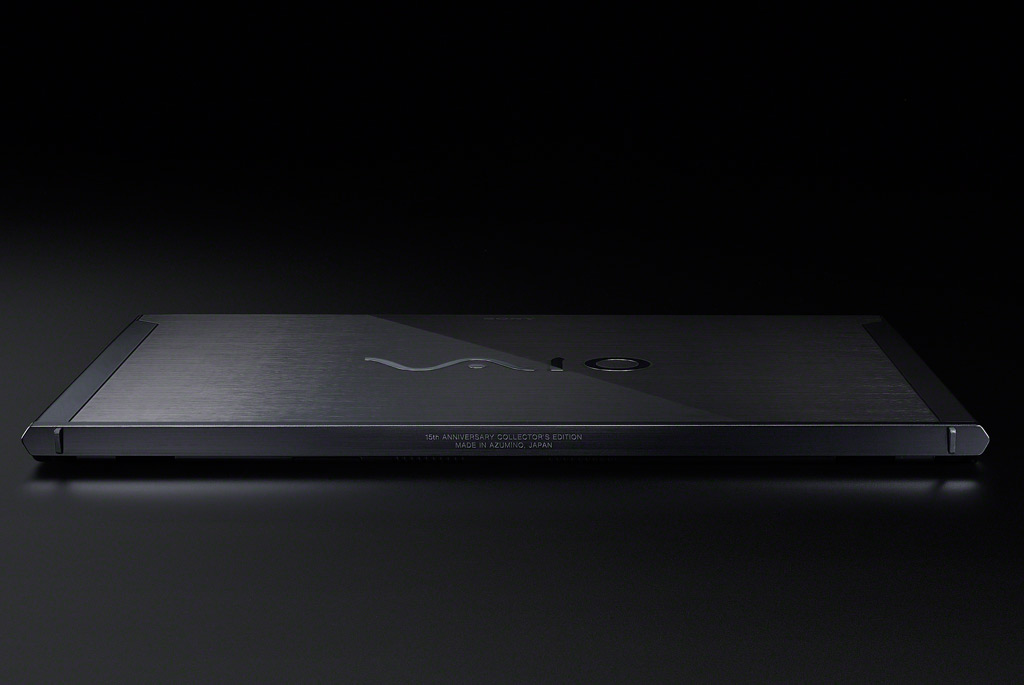
Sony Vaio Z (mid 2012 model, with Power Media Dock)
My new workhorse, Vaio Z (3rd generation), arrived today. It is bit early to say anything conclusive yet, but mostly my first impressions are positive. The overall build quality is better than in the first generation “Z” that I have been using so far. The Full HD screen is very sharp and colours are vivid. The laptop is very light, even while after the long-duration sheet battery has been added the weight goes up a bit. The keyboard feel is pretty good even while the key travel is so short it takes some time getting used to. But luckily the “click” (tactile-auditive feedback) you get from the keys is ok.
My main concerns right now relate to the touchpad. On the other hand it is a clear upgrade from 1st generation Vaio Z’s touchpad that did not properly support multitouch. Here you can do all the scrolling and rotating gestures you most usually need. But touchpad is rather small, and most serious thing is the nonreponsive left mouse button. There must be something wrong with its mechanical construction – getting it to register button clicks is pretty frustrating hit and miss thing. Really unacceptable from a laptop of this caliber. I still need to check whether this could be something that a driver upgrade could fix.
Things that I have not yet got any chance to test include the discrete graphics chip in the Power Media Dock, in Blu-ray as well as gaming modes. It is also interesting to see how long the battery will actually last: since the sheet battery is installed on top of the regular one, there is two of them, and it seems that when the power brick is not plugged in, Z3/Win7 first starts draining the long-life battery and the regular one will stay in 100%. Sony promises 14 hours of usage, but I will see this in the real life later.
Also, I have not found yet where to insert SIM card (this thing should come with 4G/LTE mobile data module). Maybe it is buried underneath the battery compartment like in the old Z1.
Lewis Mumford, a critic and historian of technological civilization, has written that art and engineering were separated in the fourteenth century. Before that, engineers were artists, and vice versa. (See his Technics and Civilization, p. 219.) Yesterday, Apple registered a win in courtroom over Samsung for copying too much of Apple’s design of iPhone and iPad. (That, how much Apple originally had taken inspiration/copied from other manufacturers was not decided upon.) What remains clear is that the tools we use have a deep impact on our actions, and on our thinking and finally also to our societies. It is good to think about our tools sometimes, and also consider how tools figure in our thinking.
My two main daily tools are my smartphone (I use actively both Apple iPhone 4S and Samsung Galaxy S2, not taking sides in that argument) and my laptop. It is difficult to say which I use more. The smartphone is probably taken up more often, for small things, quickly checking up something, for checking in somewhere, for checking other people’s check-ins or statuses. But laptop is the one I would not get very far without during the working day. My correspondence, my main calendar interface, all my projects, documents and materials reside in its memory, waiting to be reorganised and recombined and expanded upon with a few touches and key-presses.
In May 2009 I started to use Vaio Z series laptop (Vaio Z31WN, to be precise), and have not looked back since. The art of engineering that is put into Vaio laptops is probably not going to evoke similar degrees of cult following like that of Apple ones, but for a person who prefers Windows OS over the Mac/OS X one, there did not use to be a better option. Today, there are dozens of ‘ultrabook’ portables which all claim to have good combination of light, solid construction, long battery life, fast SSD storage, bright screens and speedy processors. Working on ‘state of the art’ on that edge has thus got more interesting – if you are into that kind of things, that is.
After some comparison work, I have concluded that for my particular needs, the new version of Vaio Z series is probably the best option still. I travel a lot so light design is a priority, and I work with videos, photos and other media in the production side (in addition to the basic Word, Excel and web design stuff), and then there are also all those games I should be analysing. My eyes are not as good as they should be, so a really sharp screen that has wide viewing angles is also a must. Apple’s MacBook Pro with Retina Display is sure an interesting machine, but it is too heavy for me, and as I said, I do not like OS X as a work environment (I get stuff done in a PC, but keep hitting on walls while on a Mac). Thinkpad X1 Carbon has solid build, and is thin and light, but the tests tell also that its screen is so-and-so, as also is the battery life. Vaio Z has its own issues (the keyboard and trackpad for example are not the best you can find), but its combination of good screen with lightness and capable performance fits my needs best.
The mid-2012 Vaio Z has been tested here and there, but there are some exiting options that have not been addressed in review so far. One of them is 4G/LTE connectivity option that is interesting to an active traveller. (According to this German page, it appears to support 800, 1800 and 2600 MHz, as well as 2100 and 900 MHz bands: http://m.heise.de/mobil/meldung/Subnotebook-mit-integriertem-LTE-1576015.html?from-classic=1.) The premium screen option is Full HD and the long life battery claims to keep going for 14 hours (depending on use, of course).
My original plans were to do the Vaio upgrade in 2013, but there are reasons (both push and pull, financing and research needs) that suggest earlier date. I have been in talks with Sony Europe (really talking with them multiple times, which was not my original plan), and it is interesting to see whether we are able to close a deal on a specified system at all. The experiences so far have not been exactly promising. The Sony web store gives me cryptic errors regardless of the browser used, calls to the customer service go to Belgium where they tried to recover (unsuccessfully) my Sony account, then resorted to taking the specs of the Vaio over the phone. In the next step, their system was unable to process our EuroCard (MasterCard). They did send me an invoice by email. The invoice needs to be processed by due course through the university administration, which takes at least a week. Sony informed me that the order will expire after ten days. Placing an order to a web store need not be quite this exciting, I think.
Vaio Z, Mid-2012: Power Media Dock
It might be that the 15th Anniversary Edition of Vaio Z laptop is the proud paragon of Japanese electronics engineering, but there are still gaping holes in their overall customer experience, unfortunately.
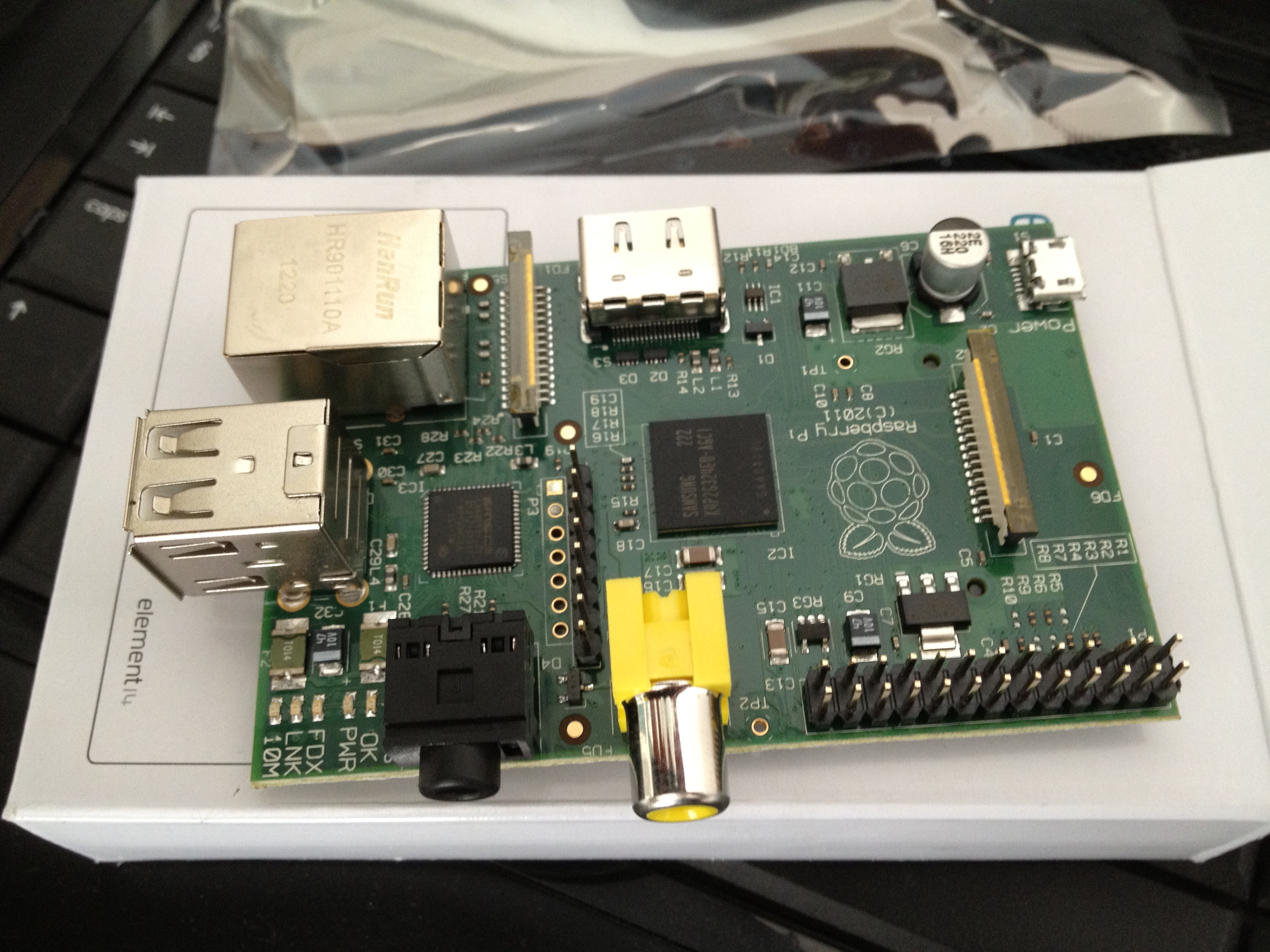
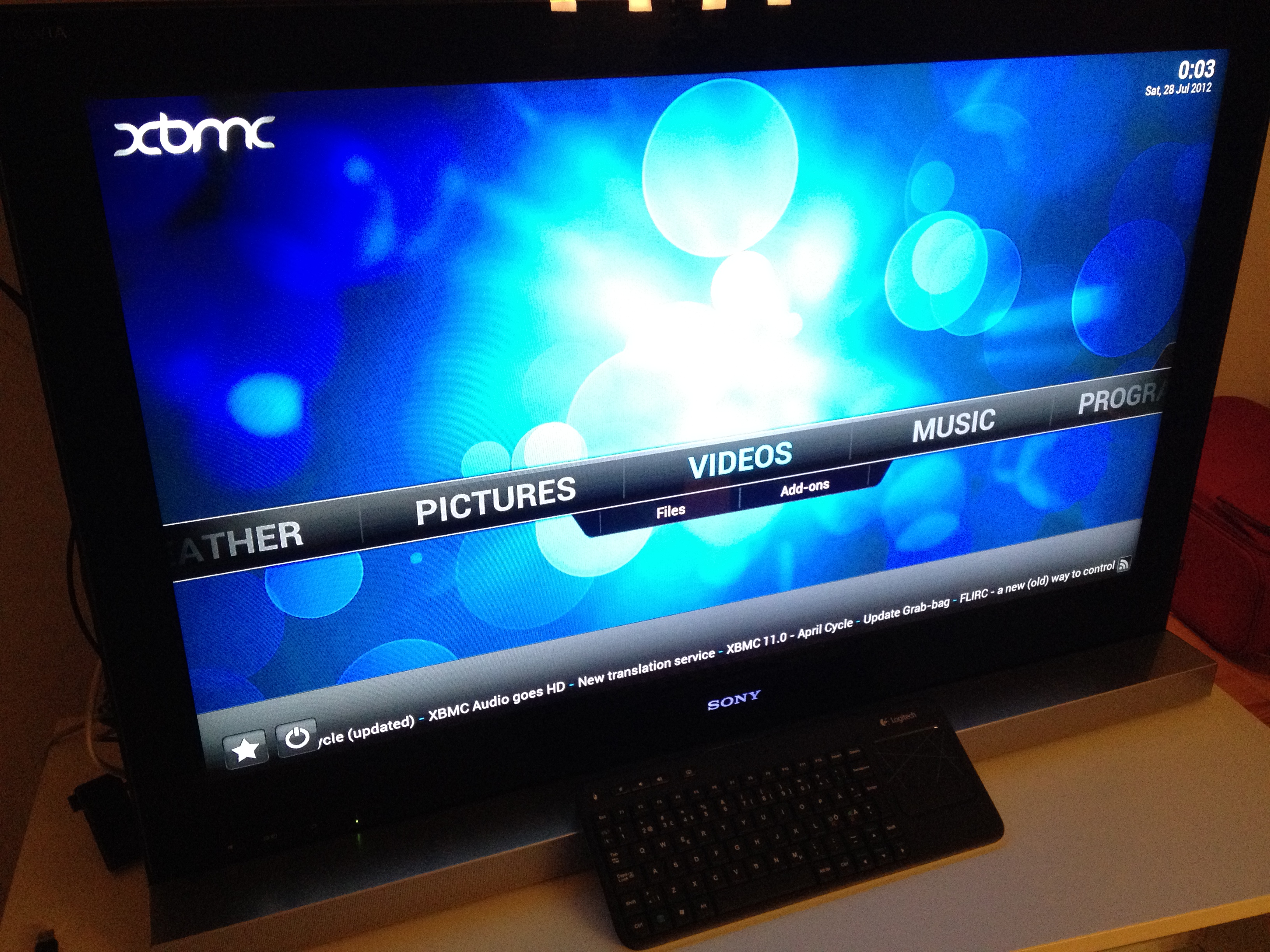
My Raspberry Pi had arrived while I was at the Microsoft Research Faculty Summit, and I got finally some hours to test drive it. As far as contemporary PC hardware goes, RPi is of course seriously underpowered little plaything. On the other hand, when you compare it with to some other devices (like smartphones, embedded systems), it does not look so bad. The principal reason for its development should also be taken into account (promoting computer literacy, encouraging tinkering with hardware and software tools, helping kids learn to code). I have been looking for some time for an affordable and functional HTPC system for serving media in our living room, and thus my first test drive involved setting up RPi as a media center PC. The Raspian “wheezy” distro that they recommend on the Raspberry Pi Foundation website was too slow and unresponsive for my taste to do anything. I tried also Raspbmc version of XBMC media center, but I could not get it to install any addons at all. So finally I did find a place that instructed how to install OpenElec, an embedded operating system that has been built to run XBMC – from a Windows PC (http://www.squirrelhosting.co.uk/hosting-blog/hosting-blog-info.php?id=9). Now XBMC was getting online, updating itself and installing addons nicely. It also booted up decently in c. 20-40 seconds.
It turned out that the major issue for me finally was a network infrastructure related one: we did not have a LAN socket in the corner where our TV set is situated. I tried to learn about WiFi USB dongles that could run out of the box, plug-and-play style with the OpenElec/XBMC, but it would had been necessary to know the exact version of chipset and firmware to make sure whether the USB dongle in question would work, so I decided to stay with the wired Internet/Ethernet connection instead, and added another layer to the (rather instesting) network topology of our home by setting up a Powerline Ethernet bridge (using two Zyxel PLA4215 units). While I was at it, I also got a powered USB 2.0 hub (a basic Belkin thing) and wireless keyboard-touchpad combo for comfortable sofa-based media surfing. The latter was a Logitech Wireless Touch Keyboard K400, which is a rattling, plastic thing, but has two important benefits for me: (a) it is cheap, (b) it has an inconspicuous power switch hidden on the side. Anyone with one or two (or, indeed, three) hyperactive toddlers in the house can witness why these are good things. I have already e.g. a broken Logitech diNovo Edge lying around somewhere. Surprisingly, everything seemed to work after a couple of system reboots.
As to the actual use of the OpenElec/XBMC/Raspberry Pi system, I have not yet much experience to share. I can say that the software is still buggy and occasionally rather slow. It is difficult to say what the system is doing when the playback or a menu does not open immediately, whether it is buffering data or whatever is going on. Attempting to stop the playback of a HD video file can suddenly jam the whole system to a complete halt. But yes, I can play music, videos and watch photos in a full HD screen from multiple sources, from both local network and from various online services in a more or less satisfactory manner. There seems to be much potential and room to explore further in this surprising little system. One can only hope that the energy of the community does not die out, but the development of software continues far beyond this early stage. It is, after all, really early in the evolution of Raspberry Pi ecosystem, as some developers have not yet even received the unit they are waiting for. Much of the OS distributions and applications are thus more at ‘alpha’ rather than even ‘beta’ stage at this point. But taken that, this is really entertaining little playground to experiment with, and to fool around.
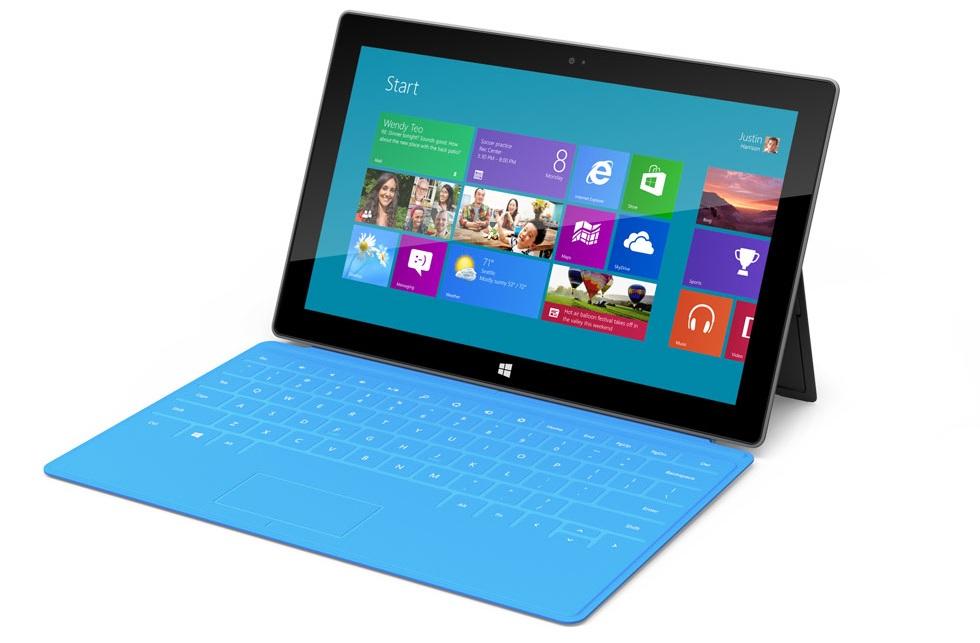
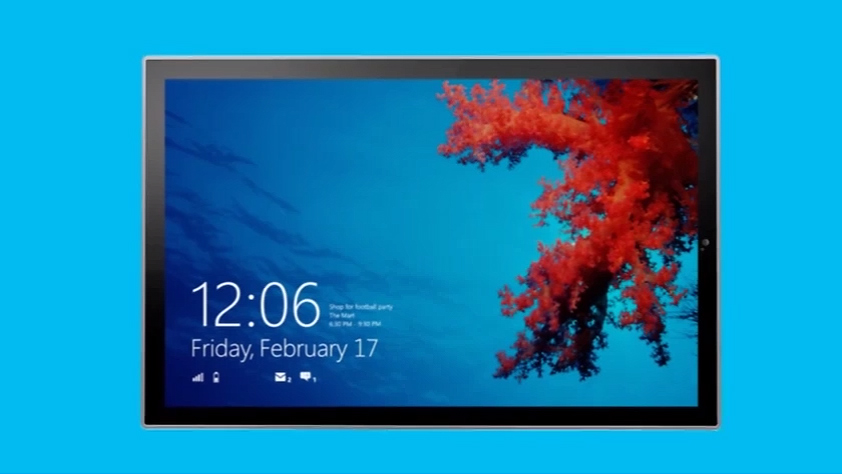
The Microsoft tablet announcement was welcome news on multiple levels. First of all, it is good to have some real competition in the future of touch oriented, mobile computing and communication devices. Apple has been dominating the field with their iPhone and iPad line of iOS devices and the Android camp, for example, has appeared to be unable to produce anything that goes beyond (or even reaches) the level of user experience and design perfection Apple has been able to achieve. It is probably necessary to have a unified vision of both software and hardware design principles to achieve real reference at this point. Now we seem to have two companies, Apple and Microsoft, that have reached that level, and the third one, Google, is forced to add the stakes, if they want to keep on the race.
Secondly, while I am an admirer and daily user of devices that belong to the Apple ecosystem (this note is written in iPad 2, using a Logitech keyboard case), they also have their shortcomings. The Apple world is very closed one: it is close to impossible to tweak the operation of software, examine the file system or make adjustments to the operating system without resorting to a cumbersome “jailbreak”. There are millions of users who are happy the way things are, of course, but if you want to seriously employ tablets, smartphones and computers in your daily work, such extra closed walls are frankly just unacceptable. Microsoft Surface tablets are part of the Windows 8 ecosystem and while I have my doubts about the hybrid Win8 interface on a traditional PC, it is clearly primarily designed for the next generation of hardware such as Surface Pro. There is some work that still needs to be done with a full desktop computer with very precise mouse and full keyboard, but it is getting more rare by the day.
My two key question marks: the first one is related to the quality of user experience, keyboard case and battery life: whether these tablets actually reach to the level where they seriously challenge ultrabook laptop computers, for example, as they appear to be priced at the ultrabook price range. The second question mark is the app ecosystem. You need to have different versions of the software for the ARM based tablet and for the Intel based one. Will the quality and diversity of applications and services be able to challenge those of Apple or Google? Time will tell. But it is good to have some options as we are moving to the world dominated by cloud computing, software as services, pervasive play and mobile computing.
It seems a beta version is “Consumer Preview” these days, well that is just fine for me. I installed the new pre-release version of Windows 8 to an extra partition in my workstation last night, and a couple of notes:
I ran into problem that appeared to be related to BIOS settings. The error code was “Windows cannot install required files. The file may be corrupt or missing. Make sure all required files for installation are available and restart the installation. Error code 0x80070570.” Actually, what you needed to do was downgrade the SATA settings in the BIOS from “AHCI” to “IDE” (may also appear as “ATA”) to get the installation running.
Also, the new graphical boot loader of Windows 8 may not play nice with your graphics card. It took me some trial and error to find out that the bootloader insisted on giving the graphics output only through the DVI adapter of the motherboard, not from the graphics card. And, on the other hand, when the Windows 8 booted for the first time, the image could only be found through the HDMI connector in the graphics card, not from the motherboard DVI. Some tweaking may thus be in order.
The new OS itself looks promising — it makes good use of usability and user experience innovations that are coming from mobile devices and Metro UI of Windows Phone 7 OS. The downside of backwards compatibility is that since there are effectively two versions — touch oriented Metro, and traditional Desktop one — of most features and tools in the OS, things can get somewhat confusing. It will be interesting to see how things will look like in about a year, after some new, touch-enabled PC hardware have come out. There are nice videos, and the download area available at the Microsoft site here: http://windows.microsoft.com/fi-FI/windows-8/consumer-preview
I think it is always nice to know what is the privacy policy of the services you are using; particularly today, as new shadowy schemes of user tracking/selling of user information come to daylight all too often.
To the best of my knowledge, this website (www.fransmayra.fi) obeys the privacy policy of my service provider, which is WordPress.com and Automattic as the operating company. The basis is that in this kind of blog site one is subject to anonymous/non-personally-identifying tracking, meaning becoming a number in the usage statistics. On the other hand, if you are a registered WordPress user, you might also be interested in the clause that mentions that WordPress/Automattic may release personally identifying information about your site usage, if it receives “governmental request”. On (yet) another hand, Automattic promises that it “will not rent or sell potentially personally-identifying and personally-identifying information to anyone”.
I recently came across the KickStarter page of the project called Brush Monkey, a wireless-sensor-enabled toothbrush by Brian Krejcarek. Building a gamification experience out of brushing your teeth, as envisioned by Jesse Schell is thus becoming reality, do we want that or not. But what is really interesting about this technology is its ambition to make the small, sensor- and network-enabled devices so small that they can be attached to toys or any things of your daily life, and create an open API so that all kinds of developers can create their own small applications that provide fun and possibly also beneficial experiences. This is yet another step towards a more playful and creative world, or so we can hope. This is very early stages of user created content in the pervasive/ubiquitous technologies field, of course.
I made the bold leap and made a half-week business trip to the Netherlands without my laptop, assisted only by iPad 2, Logitech Zagg keyboard case and a mobile phone.
It is hard not to like a Zagg case. With a little practice you will have a user experience that is close to a PC, with only a fraction of the bulk. The physical keyboard really makes a difference. iPad with the virtual keyboard is clearly a consumption oriented device, whereas the proper keyboard sets you free to handle most of those things that our working life largely relates to. In addition, the lightness and versatility of iPad is mostly preserved (be warned, it does get somewhat heavier though), and the use is still much more spontaneous than with a full PC. But you cannot carry this thing in your pocket — in that area iPad cannot compete with your mobile phone.
For a business user the main downsides of iPad+Zagg combo are mostly related to the limitations of Apple’s iOS. The file management is painful; files that you have handled reside in the internal memory allocated to each individual program, and it is mostly impossible to save directly from an iOS app to the file hierarchy that your other computers use. In some cases you need to resort into emailing the edited document back to yourself as an attachment, which is ridiculous. Luckily, there are workarounds like subscribing to Dropbox service — there are several nice text editors, for example, that can be linked to your Dropbox account so that you can sync your iPad productions into a place in the cloud. Apple provides their own iCloud, of course, but Dropbox leads the field at the moment at least.
The keyboard feel of Zagg/Logitech is not exactly the best PC keyboard experience I have had, but it is solid and good enough for myself at least. There are really useful additions like arrow keys (hooray! the thing I have missed most from the iOS virtual keyboard), volume keys, cut-copy-paste keys, plus dedicated keys for getting to the iOS home screen, for locking the screen, and for changing between international keyboard layouts/languages, which is also very handy. Also when consuming media, like while reading or watching a movie during a flight, having a stand for iPad is of course a useful thing.
The only half-serious usability issue I have had with this thing so far is related to the locking mechanism of Zagg case: there is no such thing. You are supposed to squeeze the iPad between the rubber cushions inside the aluminium case so that it locks into place. This is not so easy. You need to use a bit of downwards force, have the iPad in precisely right angle, secure the other edge of iPad to its place with your other hand while you press the other edge to its proper position with another one. Additionally, if the case slips off, it will automatically unlock the iPad screen. Apparently there is the same magnetic auto-unlock feature in play as with Apple’s official “smart cover”. I wish Zagg/Logitech engineers would had come up with less tricky closing mechanism. But the benefits of the keyboard case are so obvious that it encourages you to work over the learning threshold.
Apart from the lightness and compact form factor, the battery durability is probably among the best features of having iPad & Zagg as your main ‘laptop’: you can keep typing notes and surfing for materials for a full day meeting, come back to hotel in the evening, continue working, and find out that your battery is still at 64 %, just like I just found out today.
Verdict: Zagg/Logitech keyboard case for iPad 2 is a pricy, but well constructed accessory that really changes iPad into real business tool, if that is what you need.
Our third new research project is part another large consortium project, coordinated by professor Roope Raisamo (TAUCHI). A work package on play and exercise is situated within Active Learning Spaces, a new Tekes project. (Link forthcoming.)





 frans goes blog
You must be logged in to post a comment.