Again with headache, after a few hours of working in train, it comes apparent that even with hi-def, retina displays, the non-ergonomic posture and other troubles of working with laptops in cramped surroundings of mobile work are not going away.
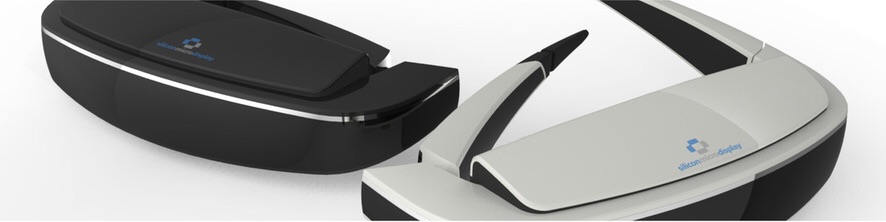
Silicon Micro Display ST1080
There are probably several solutions to this particular challenge, but here is one idea: how about rather than insisting on staring at a laptop, having something like the recent Intel “PC on a stick”, plus a battery pack/power brick, coupled with a best-of-line wearable display? As those things are getting lighter and the projected displays sharper, and some of them also go for semi-transparent, see-through technology, there appears to be a true alternative future for wearable computing that consists of multiple devices plugged together, in a modular fashion. One problem with thin-and-light laptops is, for example, that their pursuit for paper-thin form factor compromises the keyboard. With a PC stick in your pocket and a see-through-display on your eyes, you also could have a really good, wireless keyboard and mouse connected as the input devices, and keep looking naturally ahead of you, with a large and sharp virtual display hanging in the air, at the optimal position and distance to save your eyes and neck from extra strain.
The current generation is probably not yet ready for the job, but here are some pointers for those who are interested to see where we are right now:
If you were a techie nerd in the 80s, you might have used a Casio Databank wristwatch: a bulky device that had a small LCD screen, capable of acting as a calculator, address book, as well as a simple gaming device, while also providing advanced clock features. Those watches were (and still do) dividing user opinions, some enjoying their technically advanced, engineer-oriented pleasures, some staying as far as possible from such gadgets. With today’s focus on “smart watches” and “fitness bands”, such bulky appendices may be making a return to thousands of wrists this Christmas.
Another way of looking at these things is to consider them as the coming of the “wristwatch computer”, or manifestations of wearable, pervasive or ubiquitous computing, depending on the more general concept to adopt. As such small, “smart things” start to network and communicate with each other, they are also parts of “Internet of Things”, or “Web of Things” developments. The overall promise is of better services, which are more contextually aware, that provide information and interaction affordances in more convenient ways than the old, “PC-centric” computing paradigm has allowed. Such technologies are on the one hand inherently personal, as they connect with a trusted device (typically your mobile phone), which also may include your calendars, contact information, various social media accounts and other personalization information. On the other, they tap into new types of sensors, location-aware services and proximity beacons to provide novel services and experiences.
The futuristic promises are great, but the reality is still in the making. The current generation of smartwatches are limited in many ways, including unwieldy form factor, limited functionalities, occasional bugs, and typically rather short battery lives. The promise is nevertheless there, and many people appear to be drawn to experiment with such devices on the basis of two key functionalities: accessing smartphone alerts and information from a wristwatch, and for fitness or health information captured by the smartwatch sensors. The more advanced functionalities such as universal NFC payments, or location-based games are still waiting in the future.
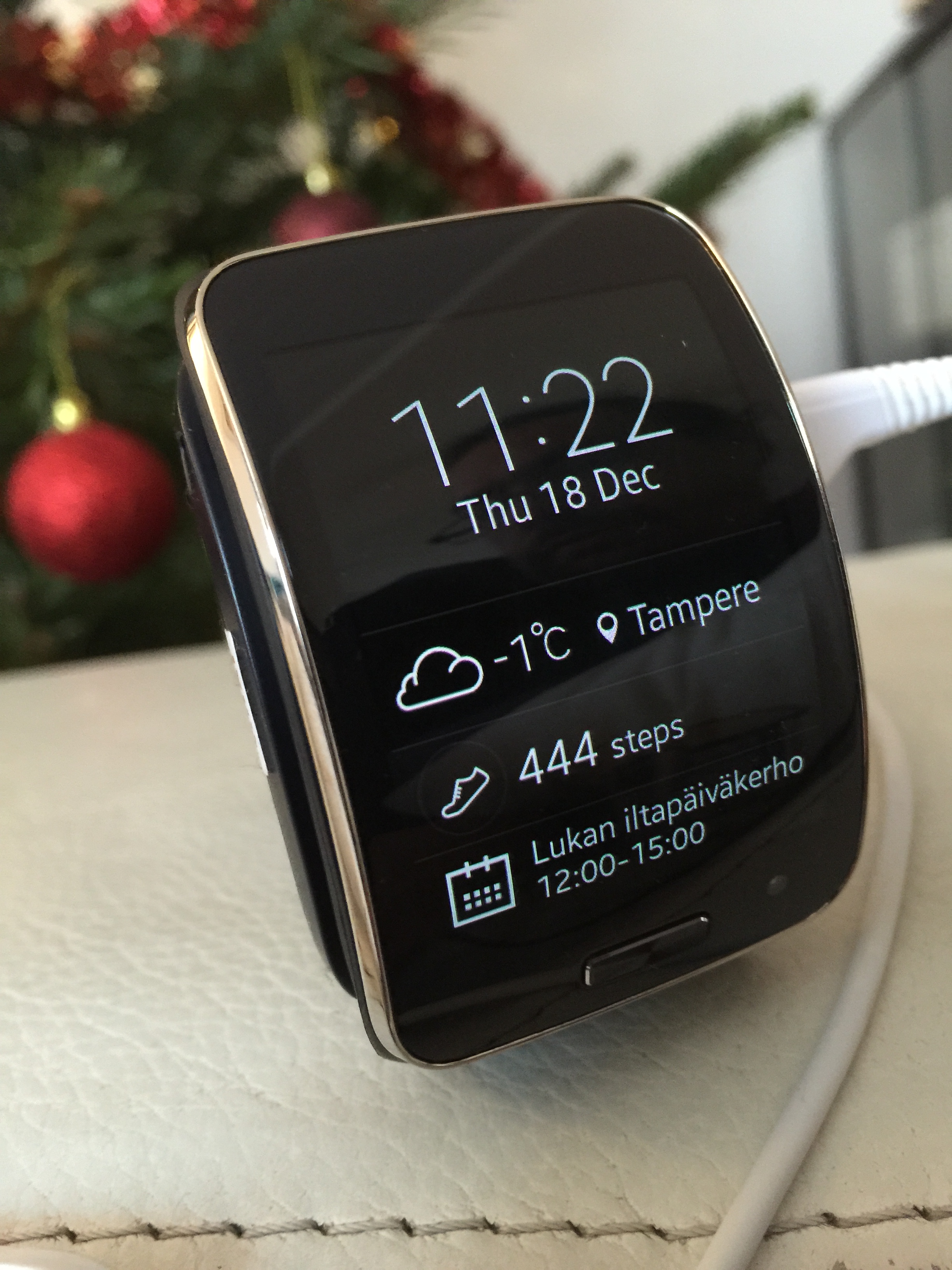
My recent experiences on smartwatches are based on setting up the Samsung Galaxy Gear S (apparently a good exercise for your faculties also while lying down with a nasty flu in bed). There are multiple hoops that an early adopter seems to need to hop through: for example, you need to have a particular type of Samsung smartphone in order to use it. Having a custom rom in the phone was also a no-go, so in my case for example, I first had to uninstall the Cyanogenmod 11 I had been using in my Galaxy S4, wipe the phone, install the stock Samsung TouchWiz rom, and after that to proceed to reinstall all my applications, set up all the user accounts and re-authenticate e.g. all two-factor authentication-enabled services – a process that can easily take several hours, and is probably btw enough to turn away few interested testers.
Galaxy Gear S
After inserting a nano-SIM card (this device can also double as a stand-alone gsm phone), and charging the Gear S, it is time to install the necessary Galaxy Gear Manager application into Galaxy S4 from Galaxy Store (this is not available from the Google Play store, even if it is an Android app), which makes it possible to install applications and customize the Gear S. The limited selection of Gear apps is one indication of the somewhat problematic, fragmented character of current wearable ecosystems. Rather than supporting Android Wear, the Google ecosystem for wearables, Gear S is based on Tizen, a different Linux based mobile OS, developed by an association of companies, led by Samsung. Next year, the Apple Watch will arrive, opening up yet another key competing ecosystem. Getting support of e.g. your Google Maps favourites and navigation to Gear S soon does not seem likely in this competitive situation, and if you are having your calendar in Microsoft Exchange 365 server, or iCloud, for example, you first need to figure out how to get that information synchronized to the smartphone that acts as the “base station” for the particular smart device you got your eyes on. Everyone is obviously adopting a gold rush tactic, and try to grab as much land in the emerging user base as possible, trying to lock the users to their own, proprietary wearable ecosystem. From the user perspective, the situation is not optimal.
Thus, while it is nice to see e.g. movement information automatically recorded by Gear S in its S Health app, I am already a user of the leading Runkeeper service, and there is no Runkeeper app in Galaxy Gear S, nor is there a way to integrate S Health data with Runkeeper that I know of. Another handy feature would be to have the daily navigational guidance right at your wrist, when you need it. I have already long adopted the habit of including location information to all my important calendar events, so that when I am on the run, one click on the smartphone calendar will automatically open maps, with navigation, helping to choose whether to walk, pick up public transport or a taxi, which is particularly handy in a foreign country or city. Google Maps is particularly good with the public transportation schedule integration, but also Here Maps (ex-Nokia) is pretty decent in this area, at least here in Finland. Gear S does not support Google Maps/navigation, but Here Maps is supported (in “Beta”). It features turn-by-turn navigation, which appears to work and is a very good service. However, while Gear S has a bright and sharp two-inch AMOLED touch screen, which makes it into a very large wristwatch, it is still painful to use for typing in an address, with the tiny QWERTY keys. It is possible to use “Send to Gear” action from the smartphone version of Here Maps, but this seems to work only for beaming the walking instructions, and the entire operation also somewhat negates what is the key idea of wearables – of not needing to dig up the smartphone in a busy situation, with the smartwatch ready in the wrist. Another way around this would be to use “S Voice” input in Gear, but as the Finnish language is not supported, there is currently no way to just speak the local address to the Gear S. While you can get your meetings’ location information displayed in Gear S by including it into the default calendar in your supported Galaxy smartphone, it does no good trying to tap that address line in Gear S, as it is not currently linked to any navigation action.
It finally boils down to practical things such as battery life and form factor of the device, as well as language and application/service support, which of the emerging smartwatches will be a real success among the users. Based on very limited, first experiences, Galaxy Gear S is a good attempt, but finally a borderline case. The plastic-covered wrist computer is so large that at least my skin gets a bit sweaty and irritated after wearing it for several hours; stylistically, the size alone might be a complete turn-off for many potential users. Getting the notifications from text messages, emails (I opted out of those), Facebook or Twitter messages, or occasional Google Now update into the wrist display are sometimes truly useful alarms, but often distracting interferences. If you already have a tendency to lose your concentration easily, the current wearables might not be for you. On the other hand, if your work life relies on following and responding to the flow of various messages and communications and calendar events quickly and efficiently, you might consider one. I have not yet used actively Gear S for a full working day, but I suspect it should make it through a day even with the clock display turned on (the default behaviour is that it is turned off to save battery, and reacts to the movement of your rising hand by lighting up – which it often did, but also failed to do often enough to become really irritating to me at least).
Our research group has been doing studies into the future user cultures of emerging game and media technologies for years, and the ethics and rationale of design is something that we try to pay special attention with. Wearable smart technology holds promise e.g. in health, social and gamification applications of various kinds, potentially communicating the social presence of our important people literally to “our skin” in real time. It can also be used to remind us to balance our lives better, or to help us achieve our important goals by supportive messages or incentives. Gear S did bring up the S Health Pedometer display every now and then while I was writing this thing, reminding me about my physical inactivity and encouraging me to get up and moving. In my case, that was not probably the most efficient rhetoric Samsung could have adopted, but maybe there will be also other, more playful and less efficiency-oriented apps available in the future. And if not in Galaxy Gear platform, then those interesting experiments will be arriving in some other. (There was one, exploration oriented “POI Nearby” style Gear app I could find, but I could not get it to understand Finnish language or place names, either.) In any case, the door for real-world pervasive computing and play applications is now starting to open.
Continuing to troubleshoot our persistent home networking problems: while we have got a high pile of various routers, last several years the heart of the network has been Asus RT-N56U dual-band model, which was awarded as the fastest router available in 2011. It was a slim device, and after I updated the firmware to the Padawan version, there was also more than enough room for tweaking. However, the constant connection failures and speed dropping finally pointed towards the life-cycle of our router coming to an end. The router has been located in very narrow space, without cooling, so it should not have come as a surprise that its components have started failing after a few years.
The selection of a router for a home where there are a fair number of connected devices (smartphones, tablets and computers are just one part of them) is a tricky business. I wanted to have a 802.11ac model, but otherwise I kept on reading and comparing various options. According to specs, speed and configuration options, the current top model of Asus, RT-AC87U, was for a long time my number one choice. However, the actual user reports were a rather mixed bag: there seems to have been various bugs and issues with both the software and hardware of this, 4×4 antenna configuration, dual band ac model. And I have come to learn that I have less and less time and patience for tweaking tech — or at least, I want the router and network infrastructure to “just work”, so that I can use the Internet while tweaking, testing and playing with something more interesting.
The conclusion was to get yet another Apple product, this time AirPort Time Capsule (2 TB model). It does not reach quite as extreme speeds as the RT-AC87U, but then again, there is limited support for hardware that is capable of reaching its theoretical 1,3 Gbps top speeds. I am increasingly relying on my Macbook Pro Retina also when at home, and we are actively using several iPads and other Apple devices, so having the full Apple compatibility, while not a “must”, was a nice bonus. The user reports about the new AirPort Time Capsule have been overwhelmingly positive, emphasising its robust reliability, so I am interested to see whether this router lives up to its reputation also as the backbone of our household. So far, so good. All our devices have succesfully got online, and the speeds are close to the 100/10 Mbps maximum, also in Wifi, when close to the AirPort. And the Macbook is now making its automatic backups in the background, which is nice.
Home office upgrade: our laser colour printer, Canon i-SENSYS LBP5050n was bought in summer 2009, more than 5 years ago. It had its fair share of driver problems, and connection problems in the home LAN. Recently the connection has mostly worked for the first print, but then some error mode would require rebooting the printer to get the next pages printed. The print cartridges were also expensive, and cheaper replacement ink cartridges proved to be leaky, and giving poor quality prints. It has been time to upgrade for a long time.
Our new workhorse is an office inkjet printer-scanner, one of the new generation of multifunctional devices that support multiple wired and wireless connections, including printing and scanning with email, saving scans directly to shared network drives, and printing from mobile and tablet devices. The model is called HP Officejet Pro 8620, and while not the latest or greatest in terms of advertised features, the reliable reputation of HP as a printer maker meant a lot in this case. The quality of inkjet printing was making me cautious a bit, but on the other hand, HP advertises that the printing costs of their Officejets are up to 50 % lower than the costs of laser printing. Based on tests, the “best” quality of printer is pretty decent on regular copy paper, though inkjet technology achieves its best results on special papers, or photo papers, of course.
There have been substantial delays in my advance order for iPhone 6 Plus (apparently Apple underestimated the demand), and I have had some time to reflect on why I want to get the damned thing in the first place. There are no unique technological features in this phone that really set it apart in today’s hi-tech landscape (Apple Pay, for example, is not working in Finland). The screen is nice, the phone (both models, 6 and 6 Plus) are well-designed and thin, but then again – so are many other flagship smartphones today. Feature-wise, Apple has never really been the one to play the “we have the most, we get there first” game, rather, they are famous for coming in later, and for perfecting few selected ideas that often have been previously introduced by someone else.
I have never been an active “Apple fan”, even while it has been interesting to follow what they have to offer. Apple pays very close attention to design, but on the other hand closes down many options for hacking, personalising and extending their systems, which is something that a typical power-user or geek type abhors – or, at least used to.
What has changed then, if anything? On one hand, the crucial thing is that in the tech ecosystem, devices are increasingly just interfaces and entry points to content and services that reside in the cloud. My projects, documents, photos, and increasingly also the applications I use, live in the cloud. There is simply not that much need for tweaking the operating system, installing specific software, customising keyboard shortcuts, system parameters etc. than before – or is it just that I have got lazy? Moving all the time from office to the meeting room, then to the lecture hall, next to seminar room, then to home, and next to the airport, there are multiple devices while on the road that serve as portals for information, documents and services that are needed then and there. Internet connectivity and electricity rather than CPU cycles or available RAM are the key currencies today.
While on the run, I carry four tools with me today: Samsung Galaxy S4 (work phone), iPhone 4S (personal phone), iPad Air (main work tablet device), and Macbook Pro 13 Retina (personal laptop). I also use three Windows laptops (Asus Vivobook at home, Vaio Z and Vaio Z3 which I run in tandem in the office), and in the basement is the PC workstation/gaming PC that I self-assembled in December 2011. (The video gaming consoles, alternative tablets, media servers and streaming media boxes are not included in the discussion here.) All in all, it is S4 that is the most crucial element here, simply because it is mostly at hand whenever I need to check some discussion or document, look for some fact, reply to someone – and while a rather large smartphone, it is still compact enough so that I can carry it with me all the time, and it is also fast and responsive, and it has large enough, sharp touchscreen that allows interacting with all that media and communication in timely and effortless manner. I use iPhone 4S much less, mainly because its screen is so small. (Also, since both iOS 8 and today’s apps have been designed for much speedier iPhone versions, it is terribly slow.) Yet, the Android apps regularly fall short when compared to their iOS counterparts: there are missing features, updates arrive later, the user experience is not optimised for the device. For example, I really like Samsung Note 10.1 2014 Edition, which is – with its S Pen and multitasking features – arguably a better professional tablet device than iPad; yet, I do not carry it with me daily, simply as the Android apps are still often terrible. (Have you used e.g. official Facebook app in a large-screen Android tablet? The user interface looks like it is just the smartphone UI, blown up to 10 inches. Text is so small you have to squint.)
iPhone 6, and particularly 6 Plus, show Apple rising up to the challenge of screen size and performance level that Android users have enjoyed for some time already. Since many US based tech companies still have “iOS first” strategy, the app ecosystem of iPhones is so much stronger than its Android counterpart that in my kinds of use at least, investing to the expensive Apple offering makes sense. I study digital culture, media, Internet and games by profession, and many interesting games and apps only come available to the Apple land, or Android versions come later or in stripped-down forms. I am also avid mobile photographer, and while iPhone 6 and 6 Plus have smaller number of megapixels to offer than their leading rivals, their fast auto-focus, natural colours, and good low-light performance makes the new iPhones good choices also from the mobile photographer angle. (Top Lumia phones would have even better mobile cameras in this standpoint, but Windows Phone app ecosystem is even worse than Android one, where at least the numbers of apps have been rising, as the world-wide adoption of Android handsets creates demand for low-cost apps, in particular.)
To summarise, mobile is where the spotlight of information and communication technologies lies at the moment, and where games and digital culture in general is undergoing powerful developments. While raw processing power or piles of advanced features are no longer the pinnacle or guarantee for best user experiences, it is all those key elements in the minimalistic design, unified software and service ecosystem that support smooth and effortless access to content, that really counts. And while the new iPhone in terms of its technology and UI design is frankly pretty boring, it is for many people the optimal entrance to those services, discussions and creative efforts of theirs that they really care about.
So, where is that damned 6 Plus of mine, again? <sigh>
I have noticed that since I got myself the Macbook Pro Retina 13″, it has gradually been taking over my work travels, as well as being the main computer while at home. Since this Mac has been coming from my own pocket, and potentially not covered by any insurance while used in my university work, it is even more important than usual that I do not break it. To that effect, I recently made an order to the online Apple Store and got Tech21 “Impact Snap” case for MBPR13. I am not an expert on “smart materials” and can therefore not really comment on how credible the claims for their “Impactology” techniques really are, but at least it provides some peace of mind to have this around the Mac, while operating the device in the cramped environments like those in trains or aeroplanes. The matte surface of Impact Snap case makes it also easier to have a good hold on the Mac, which makes the device much more pleasurable to handle. And it comes in black.
I am not exactly the most experienced Mac / OS X user, and still learning my ropes. One of the weird things I have run into involve Mac slowing down after a system update (like the recent OS X 10.9.3 update I installed today). Particularly irritating was the manner in which Mac Office 2011 started the lengthy process of “upgrading identity and messages” every time after the system reboot. The only way I have been able to solve this so far is by starting the “Disk Utility” and using it to run “verify” and “repair” to the system disk. After that, it is again speedy system and easy life — until the next system update, I guess. More: http://www.cnet.com/how-to/repair-disk-permissions-to-speed-up-your-mac/
Today’s video playback world is in an “interesting” state. Some examples from our own home and life:
We have video content (ranging over a decade in age) that has been recorded using variety of mobile phones, compact digital cameras, webcams, digital SLRs, and dedicated video cameras, at least
All of these seem to have produced file formats using different video codecs, encapsulation containers, different resolutions, etc.
Some of our video content has been converted and uploaded into cloud services, such as YouTube, Flickr, Dropbox, etc.
There are multiple storage and server devices in the house: PC workstations (Windows, Mac, Linux), one PC server (Windows 2008 Server Web Edition), and one NAS (Buffalo LS-WXL)
The servers claim to be DNLA compatible (there has been several different software tools set up to the Windows Server; in NAS there is a Twonky Media Server)
The typical video streaming use situations include, but are not limited to:
Using Apple TV device to access local network disk share
Using Apple TV device to access YouTube or other cloud service
Using iPad or iPhone to stream local or cloud video content via AirPlay to Apple TV
Using PlayStation 3 to access local network disk share
Using PlayStation 3 to access cloud service
Using a laptop (PC, Mac, Linux) to access local disk share or a cloud service, possibly streaming the video to the big screen with the help of AirPlay (Mac), or Chromecast (Windows)
Using an Android phone or tablet to access local disk shares or cloud services, often streaming the video to the big screen via Google Chromecast stick
There are also a “smart” tv and a blu-ray player with embedded DNLA playback functionalities, but those work even worse than the above options
It should be noted that there are multiple, differently featured software tools in both iOS and Android devices, and Chromecast support particularly appears to be “work in progress”, AirPlay has more solid support.
When I try to play a video file e.g. from 2007 (recorded using some obscure codec that some antique compact camera then supported), the situation is more likely to fail than to succeed. I have found that the best chance to actually see the video is by copying the file to a PC and opening it in some well-supported video player. The streaming will most likely not work. Apart from the PCs, PlayStation 3 appears to support most of our video files. iPad and Android phones and tablets do not really work well with most of local video file contents, even while the support has been getting better over the years. Most recent content, created with the new Androids or iPhones, for example, is more likely to perform well also in the complex home media streaming environment. The old video files will most probably always remain tricky. One solution would be to convert (and possibly upload to an online cloud service) all videos, since e.g. YouTube is rather well supported in different device environments. In reality, the hundreds of files will never be processed in this manner, and many people will probably also prefer to keep their most private, personal videos only in local storage rather than in some cloud service.
I have been testing and using Windows 8 (and now 8.1) in most of my Windows PCs for some time now, and while I mostly fail to find any real use for the Metro style apps, there are some nice improvements (most of them “under the hood”) that make Windows 8 preferable to Windows 7, for me, at the moment. However, there remains some issues that mostly relate to how to manage the new gesture controls of Windows 8, when only one of my Windows laptops is an actual touch-screen device. Swipes from the sides of the screen need to be carried out by pointing and clicking with a mouse, which is cumbersome, or through a touchpad, which have their benefits and downsides.
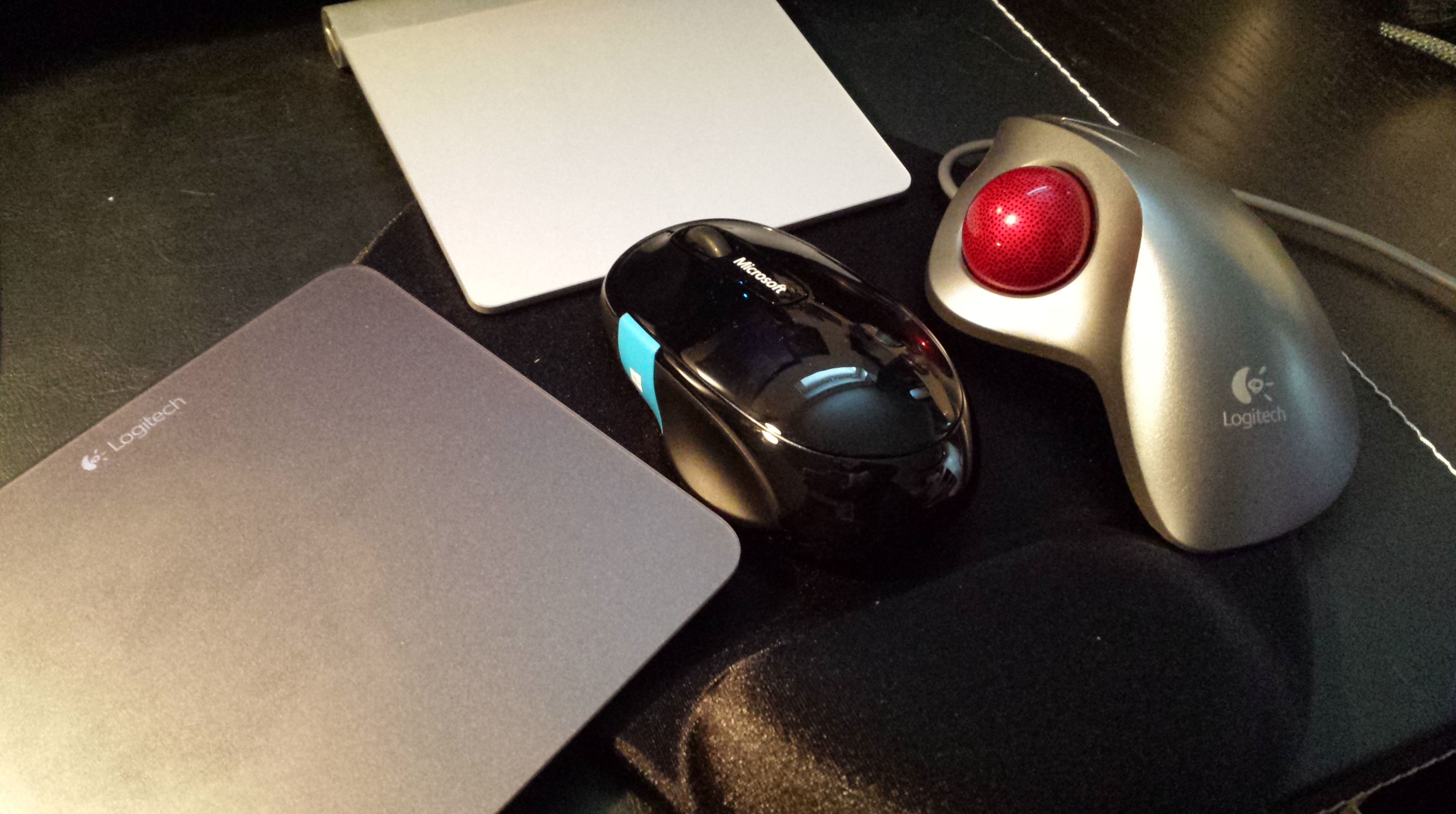
The attached picture shows by current cavalcade of optional pointing and gesturing devices that are connected and available next to the keyboard in my Windows 8.1 desktop workstation. These include the Logitech Touchpad T650, Apple Wireless Touchpad, Logitech Marble Trackball and Microsoft Sculpt Comfort Mouse, the most recent addition. The traditional mouse (with the optional Win8 button/touch area) is the most precise for pointing, the Marble trackball provides overall best ergonomics, and T650 is best compatible and supported in Windows 8 of the two touchpads (no surprises there, really). What really irritates me, is that after using one of them, there is aways some shortcoming which forces me to move to another device for a while: the touchpad is great for gestures and skimming through web pages, for example, but whenever multiple files need to be manipulated precisely, I find myself getting hold of the mouse or the trackball. And when my fingers and wrist get tired of rotating and swiping with a mouse, then I need to move a touchpad back to the mousepad.
A mobile device does not suffer from similar schizophrenia – you just use the mobile-optimized apps through a mobile-optimized UI. The touch gestures in Windows 8/8.1 desktop mode are a problem mostly since they are almost useful, so that once you have started to use them, it is hard to go back — yet, on the other hand, they do not naturally fit the desktop computer control devices capabilities. You are stuck in the middle.
Today I had a chance to do a very quick test of Google Glass in local PC/tech store. The situation was hardly optimal for any real user testing, but at least this was a possibility to try on this coveted/hated device. Despite its largish frame, the eyewear is actually rather light and easy to carry. The screen (when you finally get it in your field of vision, it requires some adjustment first) is bright and sharp enough and seems to float up there, few virtual meters away. My main frustration was with the voice control: I kept on repeating “Ok Glass”, but at least this model requires that you first activate the specs through the touchpad in the right side, navigate into the correct menu mode, which displays the time of clock and the text “Ok Glass”, and it is only after this when you can give voice commands (e.g. “take photo”, “record video”, “google University of Tampere” – which actually produced wikipedia entry for “University of Tampa” – close enough…) This is not good, and I hope this was only a feature of some out-of-date firmware (?) Otherwise, I cannot see it as very convenient to use your hand to flip through the menus (displayed in a tiny, semi-transparent floating screen) in order to get into mode where you can “naturally” enter commands. Also, the voice output from Glass was at such low level that it was almost impossible to hear anything at the noisy store environment.
Ok, Glass. Interesting, but we will have a closer look again at some future event.






 frans goes blog
You must be logged in to post a comment.