
 There are multiple operating systems you can operate. Some are feature-rich, some not so much. While those who are enthusiastic and passionate about these kinds of things continue to be passionate, the actual differences between systems where you can operate are growing less and less important, year by year.
The basics of digital environments are today “good enough”, pretty much everywhere you go.
There are certain significant differences still, of course. Windows has the legacy of great popularity over decades in highly heterogeneous, work and private use contexts. It has a huge backlog of software and hardware that has been created or supported in Windows computers. This is both a blessing and a challenge. It is very difficult to produce a new version of the OS that would not conflict with some software, or some driver-hardware combination out there, as the recent hurdles of Windows 10 upgrade installations have proved.
Apple Macintosh users have more often been left in the cold, as there has been many devices which never came with drivers to make them work with a Mac. There has been arguably a lot of high quality, professional software available for Macs, but in purely numeric terms, Windows software ecosystem is order of magnitude larger.
A bit similarly, iOS (the operating system for Apple mobile devices) is limited by design: there are many restrictions for modifying and customising the default operation and setup of an iOS system. On the other hand, the software developers can rely on highly standardised environment, and users get a very reliable (even if unified and rigid) experience.
There are thus obvious pluses and minuses with the various philosophies that operating systems have adopted, or have been based on.
The current leader, Windows 10 is overall strong in diversity, meaning here particularly the software and hardware support. Be it business software, services or games, Windows is the default environment with most alternatives. On the other hand, a Windows user is challenged by certain loss of control: both the operating system and much of available software and system add-ons and drivers are proprietary. The environment is effectively filled with black boxes that do something – and the user can in most cases only hope that what goes on is based on the right and correct principles. And as there are multiple actors in all Windows installations, the cumulative effects can be surprising: there is Microsoft, trying its best both to introduce new functions and technologies, while at the same time maintaining backward compatibility with their long history of legacy systems. Then there is the OEM (original equipment manufacturer), like Dell or HP, who typically configure their Windows computers with their own, custom-made tools and drivers. Then comes the user, who also installs various kinds of elements into this environment. There is the saying “tårta på tårta” in Swedish – cake upon cake. No-one is capable of carrying responsibility of how the entire conglomerate operates in a Windows computer. In many cases the results are good enough, and the freedom of choice and diversity of support for multiple use cases is what the users are looking for. On the other hand, there is also a well-documented history of bugs and problems related to the piling up effects of the sprawling and ineffective software ecosystem.
As the leading open-source alternative, Linux is known for rather effective use of computing resources. A typical Linux distribution runs well on even ageing computer hardware, and on modern, powerful systems one can really experience what a fast and reliable OS can mean. There are (of course) certain downsides to Linux, as well. The main challenges in this case lie in the somewhat higher threshold of learning. While there are increasingly easy distributions that come pre-configured with graphical tools that allow the non-expert user to take hold of their system, and configure it to their liking, the foundation of Linux is in command-line tools and text-format configuration files. Even today I find that after a new, out-of-the-box Linux distro installation, I feel the need to spend perhaps an hour or two in command line, hunting and installing the various tweaking tools, add-ons and other elements that are lacking in the default installation. But Linux is getting better. Particularly the support for new hardware is now much better than what it used to be ten years ago. While the laptop computer user of Linux in the past would in many cases find out that most of the controllers, special keys and other elements of one’s device would not work at all, or only after considerable efforts, today the situation is different. Most things actually work, which is great. But if something does not work in a Linux installation, one is mostly left to one’s own devices (and for hunting for help in the various community websites online). However, as an alternative example, Lenovo recently announced that they will certify their entire workstation portfolio to run Linux – “every model, every configuration” (see: https://news.lenovo.com/pressroom/press-releases/lenovo-brings-linux-certification-to-thinkpad-and-thinkstation-workstation-portfolio-easing-deployment-for-developers-data-scientists/).
I myself recently configured two laptops with a dual-boot, Windows/Linux setup: Microsoft Surface Pro 4 and HP Elitebook x360 1030 G3. I considered both more challenging devices from a Linux perspective, since these are both two-in-one, hybrid devices with touch screens, which means that they most probably rely on many proprietary drivers to keep all their functionalities running. There were certain challenges (in BIOS/UEFI settings, in configuring the GRUB2 system boot menu, and in the disk partitioning), but Linux itself actually did handle both devices just fine. I was using the most recent, 20.04 release of Ubuntu desktop distribution, but there are several other alternatives that could work just equally well, or even better. Elitebook x360 is my main daily driver, and while my Windows 10 installation makes it run burning hot, fans blowing, Ubuntu is snappy, quiet and cool. And I actually can operate both the touch screen and touchpad with gestures that I have fully customised to my own liking, the active pen is also working fine with the screen, and there are only a couple of things that fall short of Windows 10. The special keys for controlling brigtness do not work (I use control sliders instead), and probably neither does the infrared camera (for facial recognition & login) and the LTE modem (I have not tested it though). One thing that I noticed is that this system sounds currently much better under Windows – the sound system is Bang & Olufsen certified, and they have probably configured the sound drivers and equalizers for optimal sound delivery, as the audio quality of music under Windows perhaps the best of any laptop I have used. But there is a highly detailed software tool, called PulseEffects, available for Linux that allows one to create a customized audio profile – if one is ready to dedicate the time and effort for tweaking and testing. That is the reality of Linux still, for good or bad; but luckily most of the essentials for work use will run just fine, directly out-of-the-box.
As a complete opposite of the high “tweakability” of Linux, iOS/ipadOS systems limit the user possibilities to a radical degree. The upside is then that an iPhone or iPad is very easy to use, one can always find the same settings from same places. It used to be that Apple mobile devices had excellent battery life and system reliability, but could only do one thing at a time. With the launch of iOS/ipadOS 13 (and coming version 14), multitasking became a certain kind of option in iPad Pro devices particularly. One cam also buy (a premium, and rather expensive) “Magic Keyboard” add-on to iPad Pro, and it will come with really nice scissor keys, plus a touchpad that allows mouse-and-keyboard style control of iOS. With iOS 14 there will be some more user-configurable elements added, such as (Android-style) widgets into the desktop. There are inevitable complications related to the added capabilities. iPad Pro which is constantly polling the touchpad (or, burning the back-light in the keyboard) does not have as long battery life as one without it. The multitasking and various split screen modes in ipadOS are rather clumsy and hard to control without considerable dedication into learning new gestures and skills of touch control.
Thus, I would say that we are currently in rather good situation in terms of having several good alternatives to choose from. I myself prefer to have both Windows 10 and Linux installed in my main computers, and keep them updated to their most recent versions. But I also use iOS, ipadOS and Android daily, and all of them have their distinctive strengths and weaknesses. If something does not work in one environment very well, it is often better to try something different, rather than trying to force the operating system out of its own “comfort zone”. I suspect this basic situation will remain the same in the foreseeable future, too.
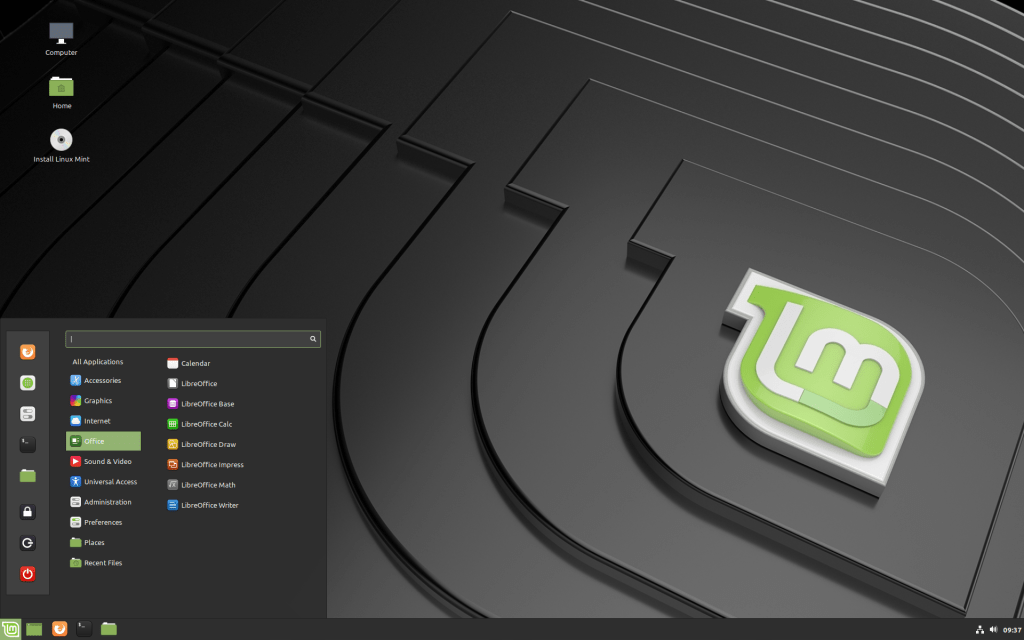

 At home, I have been setting up and testing a new, dual-boot Win10/Linux system. Lenovo Yoga 510 is a budget-class, two-in-one device that I am currently setting up as a replacement for my old Vivobook (unfortunately, it has a broken power plug/motherboard, now). Technical key specs (510-14ISK, 80S70082MX model, Signature Edition) include an Intel i5-6200U processor (a 2,30-2,80 GHz Skylake model), Intel HD Graphics 520 graphics, 4 GB of DDR4 memory, 128 GB SSD, IPS Full HD (1920 x 1080) 14″ touch-screen display, and a Synaptics touchpad and a backlit keyboard. There is a WiFi (802.11 a/b/g/n/ac) and Bluetooth 4.0. Contrasted to some other, thinner and lighter devices, this one has a nice set of connectors: one USB 2.0, two USB 3.0 ports (no Thunderbolt, though). There is also a combo headphone/mic jack, Harman branded speakers, a memory card slot (SD, SDHC, SDXC, MMC), 720p webcam, and a HDMI connector. There is also a small hidden “Novo Button”, which is needed to get to the BIOS settings.
 The high point of Lenovo Thinkpad laptops has traditionally been their keyboards. This Yoga model is not one of the professional Thinkpad line, but the keyboard is rather good, as compared to the shallow, non responsive keyboards that seem to be the trend these days. The only real problem is the non-standard positioning of up-arrow/PageUp and RightShift keys – it is really maddening to write, and while touch-typing every Right-Shift press produces erroneous keypress that moves the cursor up (potentially e.g. moving focus to “Send Email” rather than to typing, as I have already witnessed). But this can sort of be fixed by use of KeyTweak or similar tool, which can be used to remap these two keys to other way around. Not optimal, but a small nuisance, really.
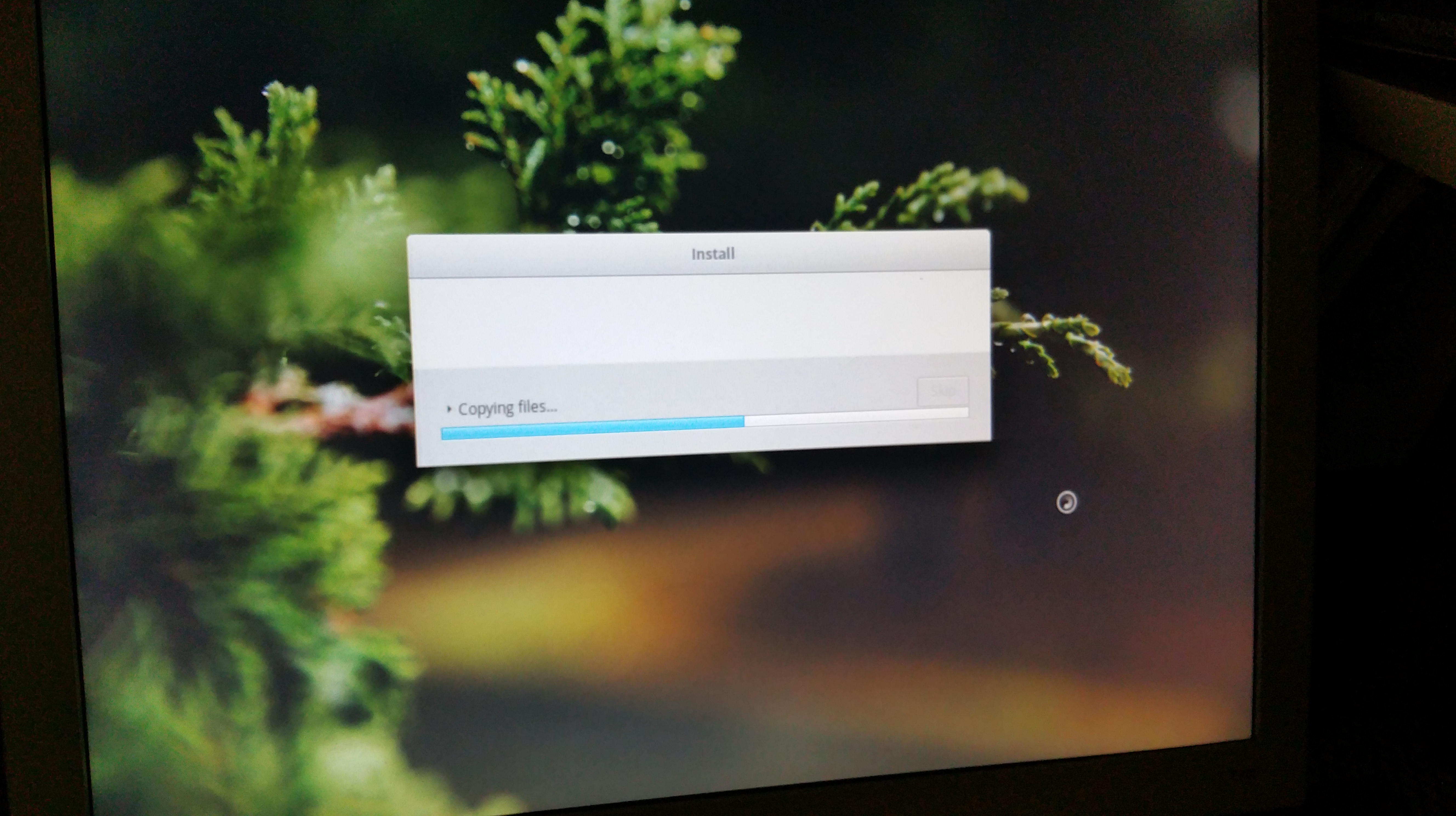
 Installing dual boot Ubuntu requires the usual procedures (disabling Secure Boot, fast startup, shrinking the Windows partition, etc.), but in the end Linux runs on this Lenovo laptop really well. The touch screen and all special keys I have tested work flawlessly right after the standard Ubuntu 17.04 installation, without any gimmicky hacking. Having a solid (bit heavy though) laptop with a 14-inch touch-enabled, 360 degree rotating screen, and which can be used without issues in the most recent versions of both Windows 10 and Linux is a rather nice thing. Happy with this, at the moment.
 frans goes blog
You must be logged in to post a comment.