Surfacing experiences

2016-02-26 18.08.19
I have been testing the Surface Pro 4 mobile device / two-in-one Windows 10 computer recently – here are some first impressions:

Windows 10 “Hello” feature with its biometric (camera) login is fast and more convenient way to log in to a mobile device that is constantly closed and opened than e.g. passwords or even a fingerprint reader – you just start the tablet and look at it, and it recognizes you and unlocks (the first times it does this feel almost magical).

After installing few essential pieces of software (and updates to the Windows 10 OS), the next thing one notices is fan noise: the process of Dropbox downloading my data from the cloud heated the system so much that the small vents were really pushing air out; on the other hand, after some OS updates, in regular use Surface Pro 4 seems to be mostly rather quiet and cool device.

The touch-screen pen that attaches to the sides of device with snappy magnets is well designed and functional; however, it takes some time to realise that the Surface Pen works in different way than most other such pointing devices. You cannot navigate, flip or scroll web pages using the pen, for example. Microsoft has decided to disable that functionality, which frankly feels pretty weird. The pen selects and draws, but you need to use your fingers to scroll through pages, that is the Surface way. Changing hands to do such basic things requires some learning. There seems to be also some inconsistency in how the pen works in different applications and OS screens, but I need to experiment further to make sure.

2016-02-26 18.09.46The most essential accessory (apart from Surface Pen) is the Type Cover, which is a pretty good keyboard & touchpad combo. It is not perfect (there is some flex, and a flappy cover is never a solid part of device like a real clamshell laptop keyboard is), but it is much better than many other keyboard covers for mobile devices. Keys have slightly rubbery feel and I cannot get as high typing speed as e.g. with a good ThinkPad keyboard or Logitech K810, for example, but with this keyboard Microsoft is almost there. The touchpad is a smooth glass thing that reacts precisely, is large enough and can handle multitouch (five simultaneous touch points), so gestures work fine. (The double-tap and select actions do not always register, however, as the touchpad is affected if Surface Pro is used in uneven or soft surfaces.) The trick is to develop the necessary skills where you automatically put your hands for some tasks to the touchscreen of Surface display, and for some to the touchpad – and then do some elements in multitasking with keyboard combos (Win-Tab, Ctrl-Tab, Alt-Tab etc.) and even then some tasks with the pen. The form factor of Surface also changes depending whether you use it with the keyboard or not, in landscape or vertical orientation, or whether the OS is in Windows 10 desktop mode or tablet mode (the “Metro” user interface that was introduced in Win 8).

This leads to the key lesson derived from testing Surface Pro 4 so far: it is essentially a “Pro” thing, rather than a casual entertainment and surf board. The lack of really high quality, polished and well-designed apps for Win10 tablet mode emphasises that the key use case still lies at the PC desktop side of things. And there is nothing wrong with that: most professionals will benefit from a fully-powered laptop that can also double as a crisp and sharp tablet for those presentation, negotiation or demo events, for example. Ability to use multiple interaction modalities and control techniques, coupled with flexibility and extensive range of different software (communications, office tools, games, media, arts, design tools, etc.) also means that the scope of uses Surface Pro 4 can handle is really great – but that the entire experience also involves its fair share of complexity. While using an iPad, for example, is so straightforward that you can hand one to your grandma and expect her to manage on her own (mostly), Surface Pro has a mixture of elements that are useful and well designed, but can at least initially confuse even a power user.

Where Microsoft cannot get full points is software finish, however. Particularly the display driver of Surface Pro appears to be still half-finished and buggy: e.g. it is now clear that one should not use the default Windows 10 Edge browser with Surface Pro 4, as entering sleep mode with the Edge open will most likely crash the display driver, and the OS even. It is common to see completely blurred, unreadable text rendered in Edge. Giving up on Edge and using Google Chrome fixes that. Another buggy thing is the way sleep mode is implemented in general. There seems to be quite a lot of Windows software that either stops Surface Pro 4 from entering the sleep mode altogether, or which keeps some processes running so intensely, that the fans keep pushing hot air out even while device is supposed to be “sleeping”, and the battery will run out quickly. (I had to uninstall Skype immediately, and Lync/Skype for Business was as bad.) The battery life is a key interest to any mobile worker, and Microsoft really needs to work on this even more. There are multiple different results in the reviews, done with wildly different settings and processor loads: some claim to get 10+ hours from Surface Pro 4, some say that in heavy use three hours is closer to reality. I still have to test this, but I would say that for typical office use, Surface Pro 4’s battery and the way Windows 10 and its current generation of drivers operate, a full working day (I mean a long working day) is probably too much to ask. This is disappointing, but I think about five hours of real-time use with moderate load and multitasking is all it can do. There might be some battery saving techniques, tweaks to the display brightness etc. that will have an effect, but most users will probably not try anything like that, and just try hunting for a power outlet throughout the day – and that is not a good thing for a cutting edge, professional device that is designed primarily for mobile use in 2016. Making a tablet that is also a PC, capable of running fully powered versions of standard productivity software is not that easy feat.

I think that Surface Pro is still “work in progress”, and there are new system software updates coming out every now and then, fixing the worst bugs (at least sometimes), but much work still remains to be done. But even in its current form, Surface Pro 4 might be the optimal compromise for some – most probably for some experienced Windows power users that have need for all that flexibility and multiple use cases that Surface Pro 4 affords, and who are also willing to find solutions and work-arounds for bugs, and to learn new ways of working and handling their tools, in order to get the most out of this “mobile workstation”.

More information: https://www.microsoft.com/surface/ (Microsoft’s marketing pages for Surface Pro).

Edit: I have now (29 Feb, 2016) been using SP4 for a few full work days, and while using Chrome and avoiding installing any more sleep-messing software (Skype, Lync, Win10 ‘Messaging/Skype Video’ app), the situation has been much better than initially, the battery life remains as the main bottleneck. Perhaps bit over a half of regular, intensive work day, and you need to find the power brick. But what this tool delivers, I love: it is light enough (though more hefty and solid than an iPad, of course), and capable enough to run whatever text, media, graphics software I have thrown at it. Game testing is the next in line, and while I do not have spectacular expectations (this has no powerful discrete graphics card), it should manage some DOTA, Minecraft etc. We’ll see.

2016-02-26 18.13.40

Tablets as productivity devices

Logitech Ultrathin Keyboard for iPad Air
Professionally, I have a sort of on-off relationship with tablets (iPads, Android tablets, mainly, but I count also touch-screen small-size factor Windows 2-in-1’s in this category). As small and light, tablets are a natural solution when you have piles of papers and books in your bag, and want to travel light. There are so many things that every now and then I try to make and do with a tablet – only to clash again against some of the limitations of them: the inability to edit some particular file quickly in the native format, inability to simply copy and paste data between documents that are open in different applications, limitations of multitasking. Inability to quickly start that PC game that you are writing about, or re-run that SPSS analysis we urgently need for that paper we are working on.

But when you know what those limitations are, tablets are just great for those remaining 80 % or so of the stuff that we do in mobile office slash research sort of work. And there are actually features of tablets that may make them even stronger as productivity oriented devices than personal computers or fully powered laptops can be. There is the small, elite class of thin, light and very powerful laptop computers with touch screens (running Windows 10) which probably can be configured to be “best of both worlds”, but otherwise – a tablet with high dpi screen, fast enough processor (for those mobile-optimized apps) and excellent battery life simply flies above using a crappy, under-powered and heavy laptop or office PC from the last decade. The user experience is just so much better: everything reacts immediately, looks beautiful, runs for hours, and behaves gracefully. Particularly in iOS / Apple ecosystem this is true (Android can be a bit more bumpy ride), as the careful quality control and fierce competition in the iOS app space takes care that only those applications that are designed with the near-perfect balance of functionality and aesthetics get into the prime limelight. Compare that to the typical messy interfaces and menu jungles of traditional computer productivity software, and you’ll see what I mean.

The primary challenge of tablets for me is the text entry. I can happily surf, read, game, and watch video content of various kinds in a tablet, but when it comes to making those fast notes in a meeting where you need to have two or three background documents open at the same time, copy text or images from them, plus some links or other materials from the Internet, the limitations of tablets do tend to surface. (Accidentally, Surface 4 Pro or Surface Book by Microsoft would be solutions that I’d love to test some of these days – just in case someone from MS sales department happens to read this blog…) But there are ways to go around some of these limitations, using a combination of cloud services running in browser windows and dedicated apps and quickly rotating between them, so that the mobile operating system does not kill them and lose the important data view in the background. Also, having a full keyboard connected with the tablet device is a good solution for that day of work with a tablet. iPad Air with a premium wireless keyboard like Logitech K811 is shoulders above the situation where one is forced to slowly tap in individual letters with the standard virtual keyboard of a mobile device. (I am a touch-typist, which may explain my perspective here.)

In the future, it is increasingly likely that the differences between personal computers and mobile devices continues to erode and vanish. The high standards of ease of use, and user experience more generally, set by mobile device already influence the ways in which also computer software is being (re-)designed. The challenges waiting there are not trivial, though: when a powerful, professional tool is suddenly reduced into a “toy version” of itself, in the name of usability, the power users will cry foul. There are probably few lessons in the area of game (interface) design that can inform also the design of utility software, as the different “difficulty levels” or novice/standard/expert modes are being fine-tuned, or the lessons from tutorials of various kinds, and adaptive challenge levels or information density is being balanced.

Sanna Malinen’s PhD defence

2016-01-08 14.31.49Today researcher Sanna Malinen defended her PhD thesis in the University of Tampere. The opponent in the public defence was professor Pekka Räsänen from the University of Turku, professor Frans Mäyrä acted as the custos. The abstract and download link to the full, PDF version of the dissertation, titled Sociability and Sense of Community among Users of Online Services, are below:
The dissertation explores a current and popular phenomenon referred to as ‘online communities’ from both theoretical and empirical viewpoints. Online communities are discussed in the context of a wider development in social life from small geography-based units to large and dispersed social networks, which can be mediated by technology. In this study, online communities are understood as fluid objects that are created and maintained through users’ social interactions and actual social practices. Therefore, they are not stable and fixed groups but, instead, a social process that transforms over time.
The empirical portion of this work illustrates the multifaceted nature of the research subject and consists of five case studies exploring the usage of software intended for various purposes: an online photo-sharing service, an online exercise diary, online auctions, and social-media applications for smartphones. In addition, there is a research article consisting of a literature review that synthesise research into online community participation conducted over the past 12 years. The findings from the empirical sub-studies show that community-evocative feelings and behaviors can emerge within various online settings, including dispersed networks and content-oriented sites focusing on artefacts that users produce, such as photographs. However, users can have very different orientations with respect to their interest in social networking and community-building within the context of the same site. The literature review shows that the majority of previous research on user participation has focused on the quantity of their activity. Instead of dividing users into active and passive on the basis of the amount of content they produce, research should acknowledge that there is greater variety in the ways of participating and belonging to an online community.
The dissertation vividly illustrates that online communities are a constantly changing and developing phenomenon. In recent years, the most notable technological changes have been the surge in popularity of large-scale social network sites and increased usage of the Internet via mobile devices. In order for the concept of community to be applied in description of online sociability within current technological settings, the meaning of this term and the criteria for community needs to be rethought.

The full dissertation: http://tampub.uta.fi/handle/10024/98292.

Gaming station, next generation

As I wrote around Christmas 2011, I made my latest big PC upgrade then, going for Asus P8Z68-V, GEN3 motherboard and ASUS GTX 560 Ti DirectCU II TOP based system. This served me four, rather than planned five years though. Apparently the motherboard peripherals failed, and then BIOS upgrade went astray, plus botched CMOS reset attempt finally killed the motherboard completely – some nice components were left to my hands, but this system lives no more: https://fransmayra.fi/2011/12/28/the-five-year-upgrade-plan/.

I must say that while setting up your own PC is interesting in itself, the compatibility and driver issues are also bit stressful and tiresome (particularly now, having spent most of last night fighting to revive the old PC system). Thus, this time I decided to submit an order to a store that sells pre-configured, pre-installed and tested PCs that also have the operating system set up. After comparing prices and configurations a bit, I ended up with SystemaStore shop from Oulu. These are some of the highlights of this new gaming station:

Processor: INTEL Core i5-6500 3.2GHz LGA1151 6MB BOXED
Cooler Master HYPER 212 EVO
Motherboad: ASUS Z170-P LGA1151 ATX DDR4 (max. 64GB ram)
Memory: Kingston HyperX Fury 8GB(2x4GB) DDR4 2133Mhz
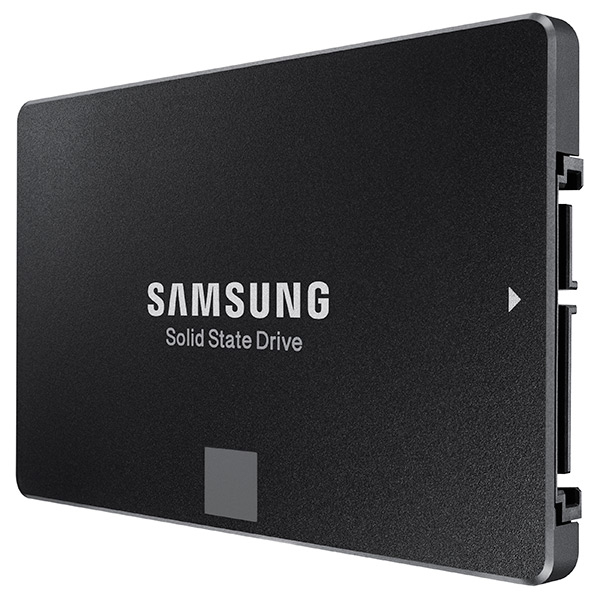
SSD: Samsung 850 EVO 250GB SSD SATA3
HDD: 1TB 7200RPM SATA3 (Seagate barracuda st1000dm003)
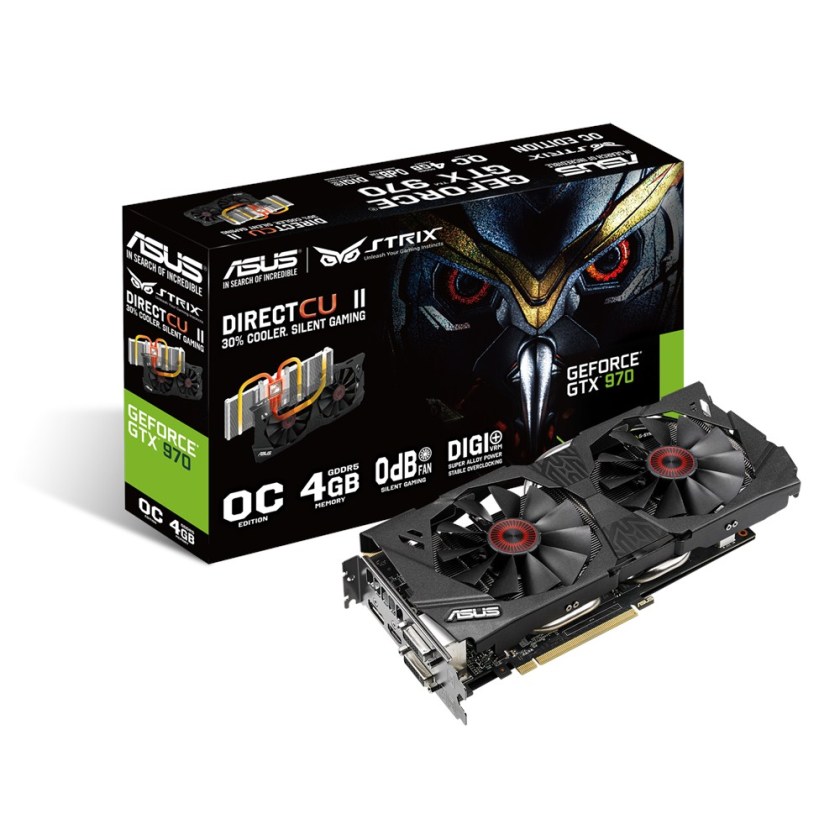
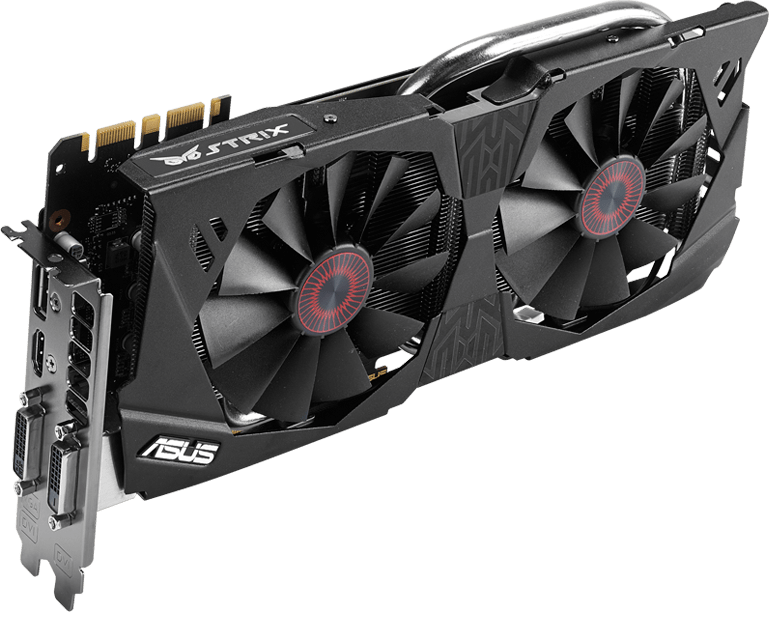
Graphics card: ASUS Strix GeForce GTX 970 OC 4GB (0dB IDLE)
DVD drive: 24X DVD+-RW SATA
Case: Corsair Carbide 200R USB3.0 ATX kotelo
Power source: Corsair 650W 80Plus® Certified ATX (VS650)
Connections: USB2.0/USB3.0/USB type C
OS: Windows 10 64-bit home FI

Let’s see how long it takes before this arrives and I will be able to do the tests (and start working and playing with it – hopefully before my Christmas vacation is over!)

Some product photos:

ASUS-P170-sideways
ASUS Z170-P LGA1151 ATX DDR4

Asus-STRIX-970
ASUS Strix GeForce GTX 970 OC 4GB

Asus-STRIX-970-box
ASUS Strix GeForce GTX 970, box

Cooler-Master-EVO
Cooler Master Hyper 212 EVO

Corsair-200r
Corsair Carbide 200R case

intel_core_i5-6500_32ghz_lga1151_6mb_cache_up_to_360ghz_fc-lga14c_skylake_box-34173680-2
Intel Core i5 processor box

Kingston-Fury
Kingston HyperX Fury DDR memory

Samsung-EVO-SSD
Samsung EVO 250 GB SSD


Corsair VS650 power source
 
More about the motherboard here: https://www.asus.com/fi/Motherboards/Z170-P/

More about the graphics card here: https://www.asus.com/fi/Graphics-Cards/STRIXGTX970DC2OC4GD5/

Best of both worlds: Windows 10?

2015-12-15 23.40.26
Win10 on Vivobook X202E.

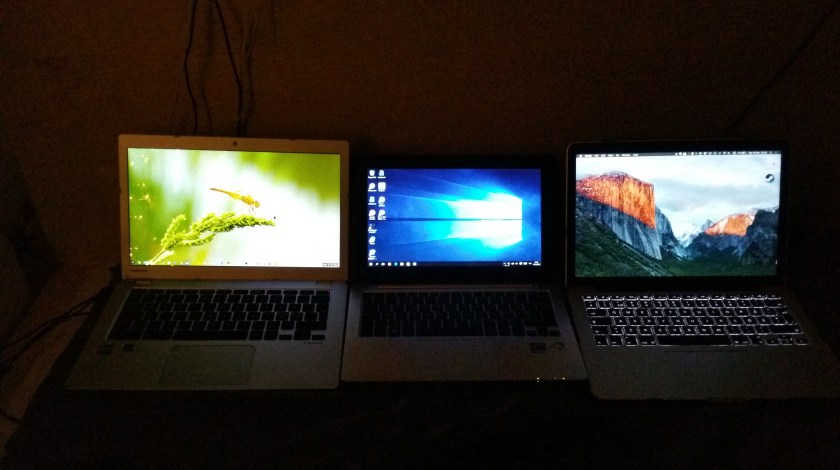
I have been running some small workflow tests on doing basic daily tasks – writing, surfing the web, doing email and project budgets – comparatively on three environments: Chromebook, Windows 10 touchscreen PC, and a Macbook Pro.

While the Mac is the most efficient and beautifully designed of them all (and the retina display is a pleasure to behold), the shallow-move chiclet keyboard does not suit my style of touch-typing. Also, I am still a bit uncomfortable with the way OS X handles maximized apps and keyboard shortcuts to move between them.

2015-12-15 23.23.39
Side by side: Toshiba Chromebook 2, Asus Vivobook X202E (with Win10), and Macbook Pro (with OS X El Capitan).

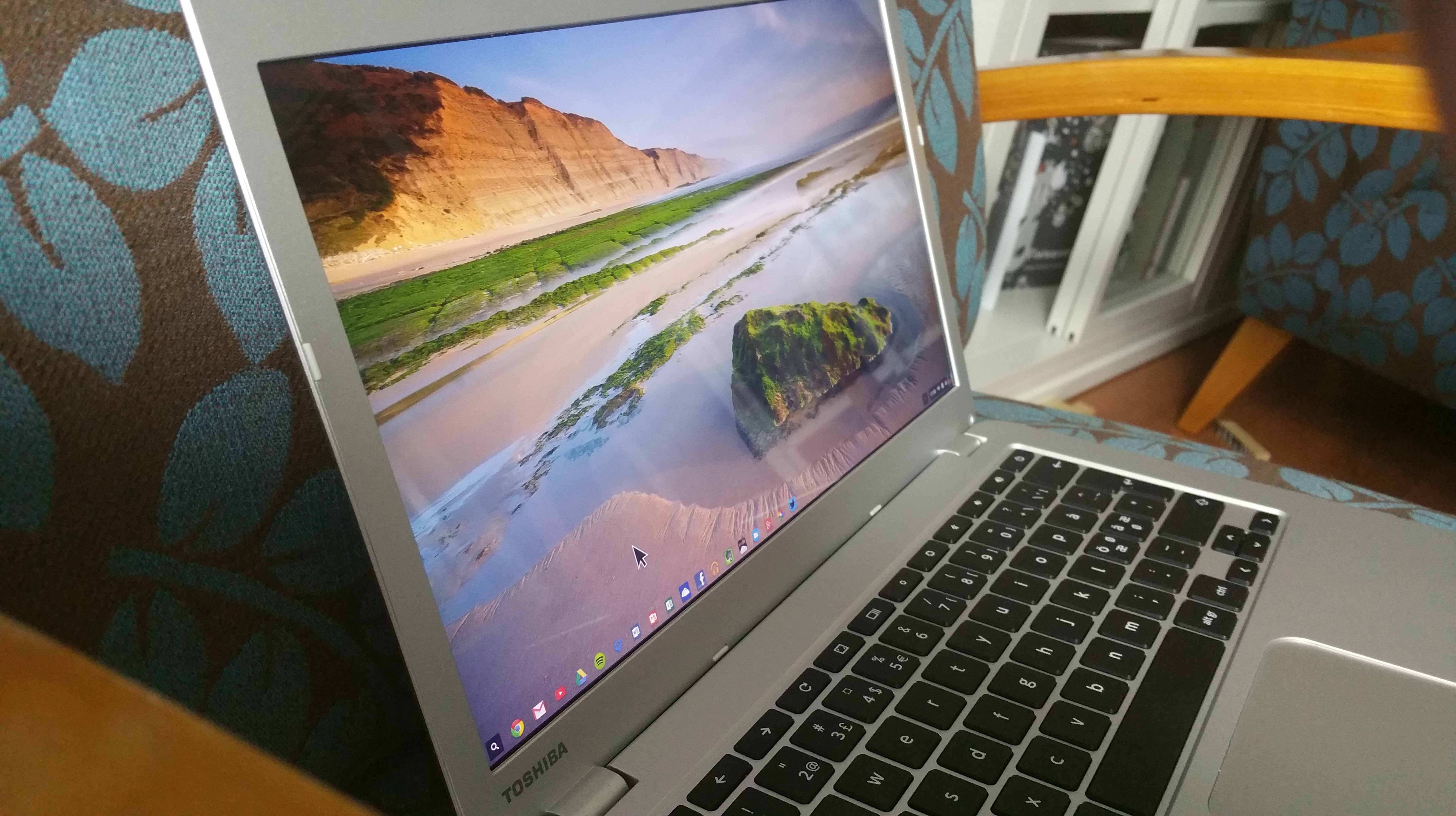
My Toshiba Chromebook 2 has excellent keyboard, beautiful screen and even the keyboard shortcuts and touchpad controls are simple and clear enough. The problem for a power-user is in the way Chrome OS is often a bit slow to respond, as it needs to load every app and file from the cloud. Also, basic operations such as copy and paste of data between cloud-based apps does not always work, which can be really painful when you are busy working on a deadline.

Windows systems are the basic workhorses of many industry professionals and office workforce in general. I recently updated my old Asus Vivobook X202E into Windows 10, and I have actually been positively surprised how snappy this underpowered, “netbook class” PC can be under the new OS. I also like the flexible, two-handed way of managing the OS and apps simultaneously via both touchscreen, touchpad and keyboard. The trick is to stick to the bare essentials in the software – for example, Chrome is too much work for this old machine to handle these days, but the native Edge browser of Win10 is not (yet) burdened by various extensions and it runs light and fast enough so that I can actually get into the web-based data before my patience runs out. Also, the classic office software and some interesting “modern style” apps work fine in Windows – e.g. this post was written in the new native WordPress desktop app, which can be from found here: https://desktop.wordpress.com/ .

Your mileage may vary, e.g. depending on which cloud service and app ecosystem you are primarily located in. I am a mixed user of iCloud, OneDrive and Dropbox myself (and Android, iOS, PC, Mac, Chrome devices), and while I think that all major OS & service ecosystems have their strengths, I am particularly happy with the Windows 10 style of doing things at the moment. (If only my touchscreen laptop would be a bit more capable and up to date model…)

Sony RX100: pocket, meet camera

Photography is an interesting thing – many interesting things. Take cameras, for example. For some people, cameras and lenses appear to mean perhaps more than the actual photographs they are supposed to use those equipment for. The global growth of revenue from digital camera industry continues its upwards trend, and by some estimates is expected to reach $46 billion by 2017. There are cameras for multiple uses, and the strengths of one system in one context turn into weaknesses in another. Compare DSLR “systems camera” to a cameraphone (or smartphone), for example: the versatility provided by multiple, interchangeable lenses combined to large image sensor and powerful image processing is unbeatable when the pure technical side of photography as a form of expression is being considered. On the other hand, in everyday daily lives, few people go about hauling their professional DSLR system everywhere. Having a good camera integrated into the mobile phone is your best bet to have camera at hand when the spontaneus opportunity for an interesting photo presents itself. Though, the limitations of small lens and small image sensor inevitably set its limits to what one can achieve with a smartphone camera.

I am going to experiment next by acquiring a compact, “pocket camera” that hopefully would be small enough to actually be feasible to carry around daily in my overcoat pocket, while also having better optics and more versatile feature set than a smartphone camera.

My choice (balancing budget and wish list) concluded into Sony Cyber-shot DSC-RX100 model. This is a compact camera that was introduced already in summer 2012, and there are already several more feature-rich, upgraded versions of RX100 available (Mark II, III, and now also IV, released in summer 2015). My priority here though was to focus on the essential aspects of solid optics combined with decent image sensor and build quality, and the original RX100 ranks high in that department, and the price is pretty competitive by now.

There are few things that smartphone cameras do really well, and extensive app ecosystem, strong computing power in compact form factor and excellent touch screen interfaces are among the key such elements. If the lens and sensor are priority in a compact camera, to get that high quality shot, and you are carrying a powerful smartphone also with you everywhere, it does not make sense to try to duplicate smartphone functions in the camera itself. It is enough to be able to get the photo from camera to the smartphone, and then do the post-processing and possible social media sharing, or archiving from there (or, via a cloud service and/or a PC, for that matter). RX100 does not have a built-in WiFi or other wireless functions, so I have now equipped my new Sony with the Eye-Fi Mobi Pro 32 GB SD memory card, which has the WiFi, and can connect to e.g. iPhone Eye-Fi Mobi app, where from you can take the editing and sharing business as far as you want.

I also invested to some other small add-ons: the official camera LCD screen protector (PCK-LM15) and the Sony AG-R2 Attachment Grip. The latter affects the slim, flat design of RX100 a bit, but is really good for getting reliable hold of the camera so that you can confidently work through multiple positions, without fear of dropping the camera.

RX100 is one of the most popular cameras in the relatively new “enthusiast compact” category, that I guess emerged out of Darwinian adaptation process, where mobile phones took over most of the “snapshot” market, and the compact camera manufacturers were forced to evolve and differentiate their offerings from the most basic and casual photography needs. The manual of RX100 is a rather thick volume, so it has fair number of various options and functions, and this camera has also a rather large, one-inch image sensor (of 20 megapixels), a Carl Zeiss Vario-Sonnar T lens (28-100mm equiv., f/1.8-4.9), image stabilization, automatic face recognition, customizable controls and the ability to shoot recording RAW images – something that the more professional (or nerdy) photo tweakers can value.

It is still too early to say whether the idea of having a daily pocket camera available actually makes any real sense, so that the extra 240 grams of weight in my jacket pocket really pays off. But I guess that in those conference trip breaks this would allow one to jump on and off the “tourist mode” with a bit more expressive range available than just a mobile phone camera would allow. We will see.

Gestures and multi-touch: Logitech T650

As operating systems evolve, so do the ways of interacting with them. While older laptops might have still the processing power or even the disk space to run e.g. Win8 or Win10, it is often in the control, or human interface hardware where the support is lacking. Adding an external keyboard and touchpad might be a way to give some extra life to an older system, while the downside of such “hybrid system” will unavoidably be that you’ll lose the simplicity of being able to just open the laptop cover and quickly start working. Setting up the external keyboard and external touchpad might make nevertheless sense for longer working sessions. In my case, I suffer from chronic carpal tunnel syndrome and simply cannot work with non-ergonomic mouses, keyboards or touchpads – and I regularly rotate and try all sorts of mouse replacements and other add-ons.

Logitech T650
Logitech T650.

My optimal system at the moment is based on some very nice gear Logitech has developed. Both on my Macbook Pro and Vaio Z3 I have now set up the illuminated bluetooth keyboard by Logitech: K810 model for Vaio, K811 for Mac. The key travel in either of these, otherwise pretty excellent PCs is just too shallow to allow for high-speed typing – at least for me, your mileage may vary. Logitech K810/K811 is so excellent piece of design and engineering, with such an outstanding typing experience, that I just cannot stop marvelling at it every day I use these things – and I have purchased several, despite the rather steep price. My lurking nightmare is that Logitech will some day cancel this product, or somehow alter and ruin the design and functionality – so I just might again go out and get a couple extra ones to my spare parts closet, just to be on the safe side.

While I really like the touchpads of Macbooks, the touch behaviour in Windows systems has been much more problematic. In modern Windows 10 systems the touchpads apparently are getting closer to the Mac standard, and there is also the additional interaction affordance of touch screen in many Win10 models (something that Apple has stayed away in their laptops, while the touch interface of iPads and iPhones is of course very good). I happen to like the combination of touch screen and mouse/touchpad – it feels natural to handle screen directly, and it is also good for ergonomics to change the manner of manipulation every now and then – even while if touch screen would be the only mouse replacement, it would not really work.

For older Windows 7 devices like my Vaio Z3 there is no luxury of truly working multitouch gestures or anything like that – the touchpad in this Vaio is small, cramped and operates so erratically that it can pretty much drive you crazy, particularly if you have used something like Macbook Pro, with a really good touchpad and multigesture OS X that supports it.

While originally purchased for my other, Windows 8.1 equipped home computer, I recently took the Logitech T650 external touchpad to work and tried setting it up with my Vaio. While the small “Unifying” connector now takes up one precious USB port (no bluetooth in T650), I was surprised how well this Logitech touchpad works with Windows 7. The newest version of Logitech’s SetPoint software works really well also under Windows 7, and the two-finger, three-finger and even four-finger gestures really transform the speed and ease of use for scrolling and handling many documents and different software running simultaneously in my Vaio. The operating system is originally not really optimised for this kind of use, and there is no e.g. “expose” style overview mode in Win7, but Logitech add-on software provides that feature, as well as several others. The main problem is that if you are constantly running from meeting room to another like I do, there is not really time to set up the laptop, set up the keyboard and touchpad, switch on all of them, make sure that they connect correctly (sometimes they do not – a reboot might be required); and then, at the end of meeting to switch off and repack all three things again – just to repeat everything at the next room. But I guess I’ll just need to live with that at the moment. The multitouch gestures and solid typing experience that Logitech provides are so much better than the alternatives.

Logitech T650 multitouch gestures
Logitech T650 multitouch gestures.

4K Ultra HD monitor

Samsung U28D590D
Samsung U28D590D.
Sharper is better. I just booked the last remaining unit of Samsung U28D590D, an Ultra HD, 4K monitor from the local PC store (a display unit) at nice, 320 euros price. This is probably the most budget-consious alternative in 4K, 28″ monitors you can find; there are better, IPS screens (this is a high quality TN), and particularly professional models have better ergonomic in the stand (this is a completely fixed thing, and no VESA mounting either). But the colour reproduction, brightness are excellent, and particularly having 3840 x 2160 resolution at 60Hz, with 1 ms speed (over the Display Port 1.2) makes this pretty much what I have been looking for my gaming and photo editing needs. I am also regularly plugging in several computers (PC/gaming workstation, Macbook Pro Retina, Chromebook) to the same display at my desk, and there is interesting PIP (picture-in-picture) mode in U28D590D where you can keep an eye on the second PC while simultaneously working full screen on the other (let’s see how useful this will be in reality, though). If you think there is a better deal available from somewhere at the 300 euros price range, let me know. More information: http://www.samsung.com/levant/consumer/it/monitor/uhd-monitor/LU28D590DS/ZN.

Edit: this is the thread with instructions for getting 52 Hz at 4k on the retina MacBook Pro 13: http://forums.macrumors.com/threads/4k-display-and-retina-macbook-pro-13.1741440/

Price for mobile use value: laptops

Chromebook 2 on scale.
Toshiba Chromebook 2 on scale.

I did a quick comparison of three kinds of laptops: a touchscreen Win8-PC, Macbook Pro, and a Chromebook. Since I am primarily interested in how much use time I get, for which price, and how much weight I need to carry around, here is a simple metric for the price of such “mobile use value” of a laptop. ASUS Vivobook X202E (500 €) = 1,5 kg, MacBook Pro Retina 13 (1300 €) = 2.2 kg, Toshiba Chromebook 2 Full HD/IPS (400 €) = 1,5 kg (all weights with the powerbrick included, my Mac is also protected by a Tech21 case). Vivobook’s battery runs out in c. 3-4 hours, Toshiba should go for 8 hours, and the Mac can do perhaps 9-11 hours (this is the late 2013 model). The “metric” for price/hours*weight comparison would thus be:

  • ASUS Vivobook: 500/4*1,5 = 188
  • Macbook Pro: 1300/10*2,2 = 286
  • Toshiba Chromebook 2: 400/8*1,5 = 75

Your needs may vary, but with these criteria of mine, Toshiba Chromebook 2 is pretty much in its own class regarding this kind of mobile use value (light-weight, capable laptop with adequate battery life and moderate price). Chrome OS is mostly limited by its reliance on various online services, and particularly on daily work, moving data and files from one service to another may require some extra steps, but in my tests, almost everything that needs to be done, can be done also with a Chromebook. And the totally silent, solid laptop with good keyboard, responsive touchpad and amazing, Full-HD IPS screen provides excellent user experience. MacBook Pro is much more premium device, but with its price-tag I feel less confident throwing it into my back while running into bus/airport etc. (hence, the Tech21 case). A Chromebook can even be lost on the road – and all data is still safe in the cloud, not in the laptop. (The “Smart Lock” of Chromebook detects when myself/my Android phone is not nearby, and will automatically lock itself.) A budget Windows laptop like my old ASUS Vivobook simply cannot compete here, it is much slower than either of the two others, its touchpad is pretty terrible and touchscreen use of Win8.1 has its continuous challenges. Add there mediocre battery life, and you do not have best value for mobile use.

Toshiba Chromebook 2.
Toshiba Chromebook 2 (viewing angles, from the sides).

One could of course add tablet devices like iPad Air 2 or the forthcoming Surface Pro 4 into the equation here, and argue that they’d make more sense than a Chromebook – even according to the above metric. That might be true for some, but in my use I rely on the classic “clamshell” design of a laptop, and an add-on keyboard is never the same. MacBook Air, or the new 12″ MacBook are very good devices for mobile use, but the price is not in the Chromebook range. But: everyone makes their own decisions, in the end. My guess is that particularly in the education sector Chromebooks will do increasingly well in this new era of “Cloud Computing”.

Dumb Smartwatches?

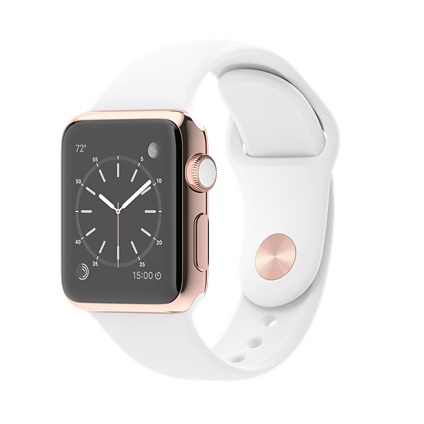
Apple Watch
Apple Watch

Apple Watch has been much in the headlines lately, and the leading role Apple has long had in fashionable, personal devices explains much of the hype. If Apple enters the product category, then it is ready for mainstream, the conventional wisdom goes. However, in this case Apple’s leadership is not guaranteed.

A smartwatch is possibly even a more personal and intimate device than a smartphone, if such a thing is possible. Rather than pocketed, a watch is tied to your wrist, always just a glance away from the focus of your attention. Granted, many people appear to walk around with their mobile phone constantly in their hand, but that is not the way a phone is originally designed to be used. A wristwatch, on the contrary, is meant to be worn all day long.

A wristwatch is also on your skin. It becomes really intimate part of yourself, and as it is a visible part of one’s attire, it can also be considered as a fashion accessory. Some people invest considerable sums of money to jewelry, and some prefer to make their fashion statements by investing into expensive timepieces. This is one demographic which Apple Watch is aimed at, with its 17 000 dollars top-of-the-line pricing.

One major problem with expensive smartwatches is the speed that information and communication technologies and services evolve. A one year or two years old model might already be obsolete, as it is missing support for some crucial new functionality. A classic wristwatch can be timeless in a manner that a smartwatch never can be.

Samsung Gear S
Samsung Gear S

Another key issue is the service ecosystem integration. Currently there are at least three non-compatible app ecosystems that are competing of the souls (and money) of smartwatch users: Android Wear, Samsung Gear (based on Tizen, Samsung’s own Android-competitor), and the Apple Watch OS. I have personally been testing Samsung Gear S watch for some time, and while it has some arguably superior technical features (for a full list, see here), it is seriously lacking in applications that would support and integrate with key information, communication, entertainment and lifestyle services that most people are already committed into, with their smartphones, tablet devices and personal computers. Support of such services is really essential for a smartwatch to survive in the technologically overpopulated media ecology of today. Having unique content that truly benefits and interacts with e.g. the sensors and contextual information of these things (as in next generation pervasive games) will be another necessary step.

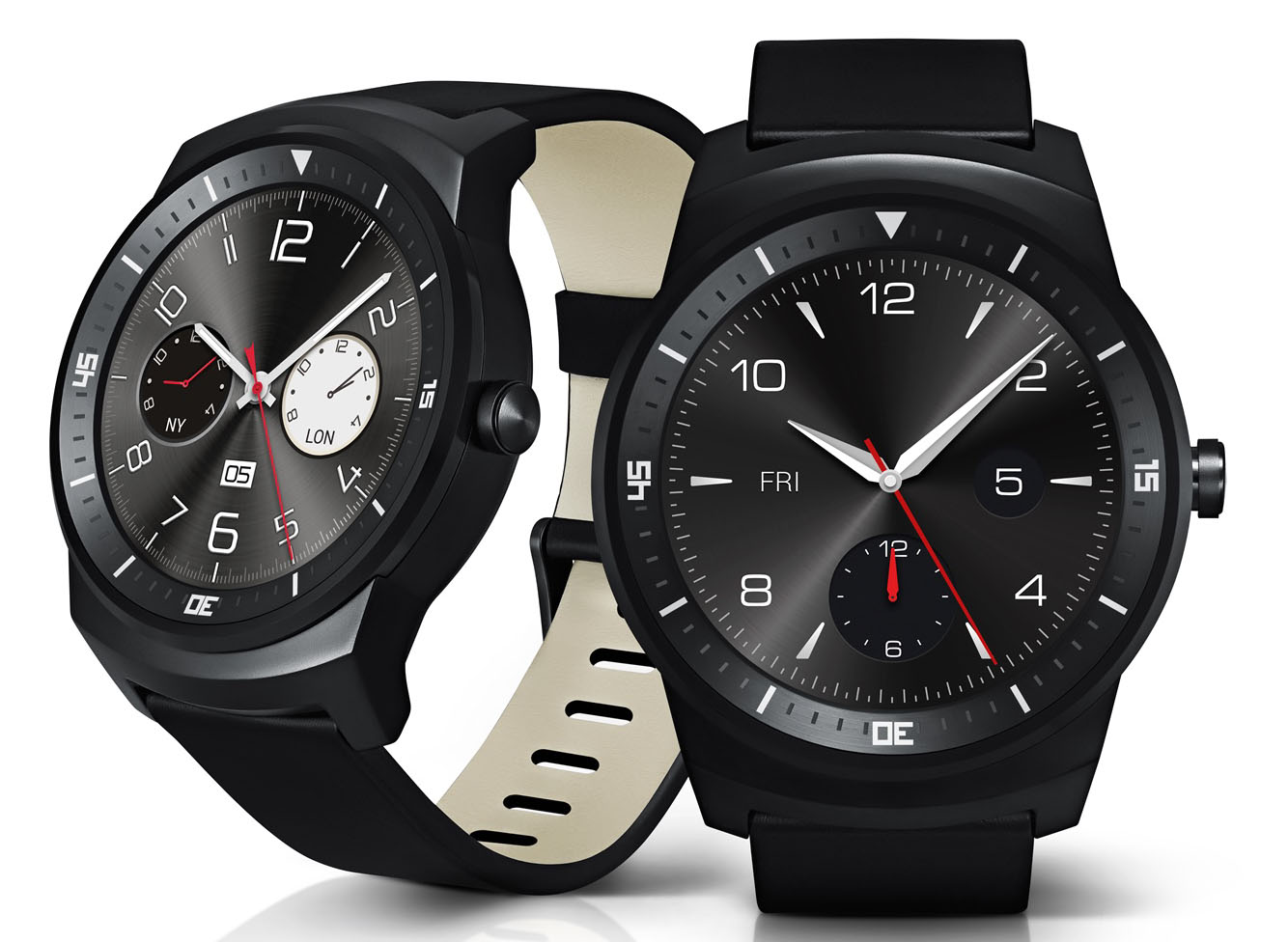
LG G Watch R
LG G Watch R

It is still too early to declare any winners in this race to colonize the virgin landscape of mainstream wearable space and associated user cultures. If some guesses can be made, though, I’d bet that Apple Watch will be doing rather well particularly in the US, where the existing user base for Apple devices has traditionally been strong, and the benefits of extending that into a smartwatch are therefore strongest. On the other hand, elsewhere I’d bet Android Wear to have advantage. This is due to the obvious benefits available for Google service users: the direct access to the wrist from Google Calendar and Google Now alerts alone is something that would be rather valuable for any busy professional of today. If all your personal and business contacts are in Google system, and you have saved all your important address points to the Google Maps, then it is natural to extend daily navigation, time keeping and communications filtering tasks to a Google-compatible smartwatch. Samsung appears to be weakest in this service integration area, and it might be a good idea for them to join forces e.g. with Microsoft with its large base of Exchange/Outlook users, as without well-integrated and highly automated access to the backbone personal data services a smartwatch is actually a pretty dumb idea.