
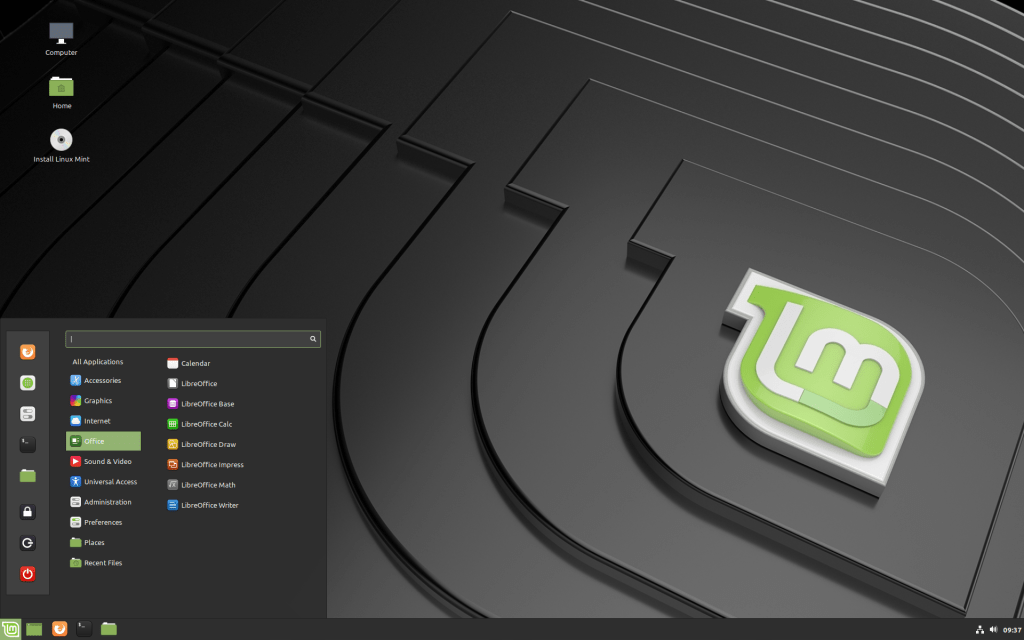
Two years ago, in August 2017, I installed a new operating system into my trusty old home server (HP Proliant ML110 Gen5). That was a rather new Linux distro called ElementaryOS, which looked nice, but the 0.4 Loki that was available at the time was not an optimal choice for a server, as it soon turned out afterwards. It was optimized for a laptop use, and while I could also set it up as a file & printer server, many things required patching and tweaking to start working. But since I install and maintain multiple operating systems in my device environment partly out of curiosity, keeping my brain alert, and for this particular kind of fun – of tweaking – I persisted, and lived with Elementary OS for two years.
Recently, there had been some interesting new versions that had come out from multiple other operating system versions. While I do most of my daily stuff in Windows 10 and in iOS (or ipadOS, as the iPad variant is now called), it is interesting to also try out e.g. different Linux versions, and I am also fan of ChomeOS, which usually does not provide surprises, but rather steadily improves, while staying very clear, simple and reliable in that it does.
In terms of the particular characteristic that I am here talking about – let’s call it “tweakability”– an iPad or Chromebook are pretty much from the opposite ends of spectrum, as compared to a personal computer or server system running some version of Linux. While the other OSs excel in presenting the user with an extremely fine-tuned, clear and simple working environment that is simultaneously rather limited in terms of personalisation and modification, the bare-bones, expert oriented Linux distributions in particular hardly ever are “ready” straight after the initial setup. The basic installation is in these cases rather just the starting point for the user to start building their own vision of an ideal system, complete with the tools, graphical shells, and/or command-line interpreters etc. that suit their ways of working. Some strongly prefer the other, some the opposite style of OS with their associated user experiences. I feel it is optimal to be able to move from one kind of system to another, on basis of what one is trying to do, and also how one wants to do it.
Tweakability is, in this sense, a measure of customisability and modifiability of the system that is particularly important for so-called “power users”, who have a very definite needs, high IT skill levels, and also clear (sometimes idiosyncratic) ideas of how computing should be done. I am personally not entirely comfortable in that style of operation, and often rather feel happy that someone else has set up an easy-to-use system for me, which is good enough for most things. Particularly in those days when it is email, some text editing, browser-based research in databases and publications (with some social media thrown in), a Chromebook, iPad Pro or a Windows machine with a nice keyboard and good enough screen & battery life are all that I need.
But, coming back to that home server and new operating system installation: as my current printer has network sharing, scanning, email and all kinds of apps built-in, and I do not want to run a web server from my home any more either, it is just the basic backup and file server needs that this server box needs to handle. And a modern NAS box with some decent-sized disks could very well do that job. Thus, the setup of this Proliant server is more of less a hobby project that is very much oriented towards optimal tweakability these days (though not quite as much as my experiments with various Raspberry Pi hobby computers, and their operating systems).
So, I finally ended up considering three options as the new OS for this machine: Ubuntu Server 18.04.3 LTS (which would have been a solid choice, but since I was already running Ubuntu in my Lenovo Yoga laptop, I wanted something a bit different). The second option would have been the new Debian 10 (Buster) Minimal Server (probably optimal for my old and small home server use – but I wanted to also experiment with the desktop side of operating system in this installation). So, finally I ended up with Linux Mint 19.2 Tina Cinnamon Edition. It seemed to have the optimal balance between reliable Debian elements, Ubuntu application ecosystem, combined with some nice tweaks that enhance ease of use and also aesthetic side of the OS.
I did a wipe-clean-style installation of Mint into my 120 GB SSD drive, but decided to try and keep all data in the WD Red 4 TB disk. I knew in principle that this could lead into some issues, as in most new operating system installations, the new OS will come with a new user account, and the file systems will keep the files registered into the original User, Group and Other specifications, from the old OS installation. It would have been better to have a separate archive media available with all the folder structures and files, and then format the data disk, copy all data under the new user account, and thereby have all file properties, ownership details etc. exactly right. But I had already accumulated something like 2,7 terabytes of data into this particular disk and there was no exact backup of it all – since this was the backup server itself, for several devices in our house. So, I just read a quick reminder on how chmod and chown commands work again, and proceeded to mount the old data disks within the new Mint installation, take ownership of all directories and data, and tweak the user, group and other permissions into some kind of working order.
Samba, the cross-platform file sharing system that I need for the mixed Windows-Linux local network to operate was the first really difficult part this time. It was just plain confusing to get the right disks, shares and folders to appear in our LAN for the Windows users, so that the backup and file sharing could work. Again, I ended up reading dozens of hobbyist discussions and info pages from different decades and from different forums, making tweak after tweak in users, groups, permissions and settings in the /etc/smb.conf settings file (followed every time to stop and restart the Samba service daemon, to see the effects of changes). After a few hours I got that running, but then the actual fun started, when I tried to install Dropbox, my main cloud archive, backup and sharing system on top of the (terabyte-size) data that I had in my old Dropbox folder. In principle you can achieve this transition by first renaming the old folder e.g. as “Dropbox-OLD”, then starting the new instance of service and letting it create a new folder named “Dropbox”, then killing the software, deleting the new folder and renaming the old folder back to its own default name. After which restarting the Dropbox software should find the old data directory where it expects one to be, and start re-indexing all that data, but not re-downloading all of that from the cloud – which could take several days over a slow home network.
This time, however, something went wrong (I think there was an error in how the “Selective sync” was switched on at certain point), leading into a situation where all the existing folders were renamed by the system as server’s “Conflicting Copy”, then copied into the Dropbox cloud (including c. 330 000 files), while exactly same files and folders were also downloaded back from the cloud into exact same folders, without the “Conflicting Copy” marking. And of course I was away from the machine at this point, so when I realised what was going on, I had to kill Dropbox, and start manually bringing back the Dropbox to the state it was before this mess. It should be noted that there was also a “Rewind Dropbox” feature in this Dropbox Plus account (which is exactly designed for rolling back in this kind of large situations). But I was no longer sure into which point in time I should rewind back to, so I ended up going through about 100 different cases of conflicting copies, and also trying to manually recover various shared project folders that had become dis-joined in this same process. (Btw, apologies to any of my colleagues who got some weird notifications from these project shares during this weekend.)
After spending most of one night doing this, I tried to set up my other old services into the new Mint server installation in the following day. I started from Plex, which is a media server and client software/service system that I use e.g. to stream our family video clips from the server into our smart television. There is an entire, 2600 word essay on Linux file and folder permissions at the Plex site (see: https://support.plex.tv/articles/200288596-linux-permissions-guide/). But in the end I just had to lift my hands up. There is something in the way system sees (or: doesn’t see) the data that is in the old 4 TB disk, and all my tricks with different users and permission settings that I tried, do not allow Plex to see any of that data from that disk. I tested that if I copy the files into that small system disk (the 120 GB SSD), then the server can see and stream them normally. Maybe I will at some point get another large hard drive, try setting up that one under the current OS and user, copy all data there, and then try to reinstall and run Plex again. Meanwhile, I just have to say that I have got my share of tweakability for some time now. I think that Linux Mint in itself is indeed perfectly nice and capable operating system. It is just that software such as Dropbox or Plex do not play so nicely and reliably together with it. Not at least with the tweaking skills that I possess. (While I am writing this, there are currently still over 283 500 files that Dropbox client should restore from the cloud into that problematic data drive. And the program keeps on crashing every few hours…)

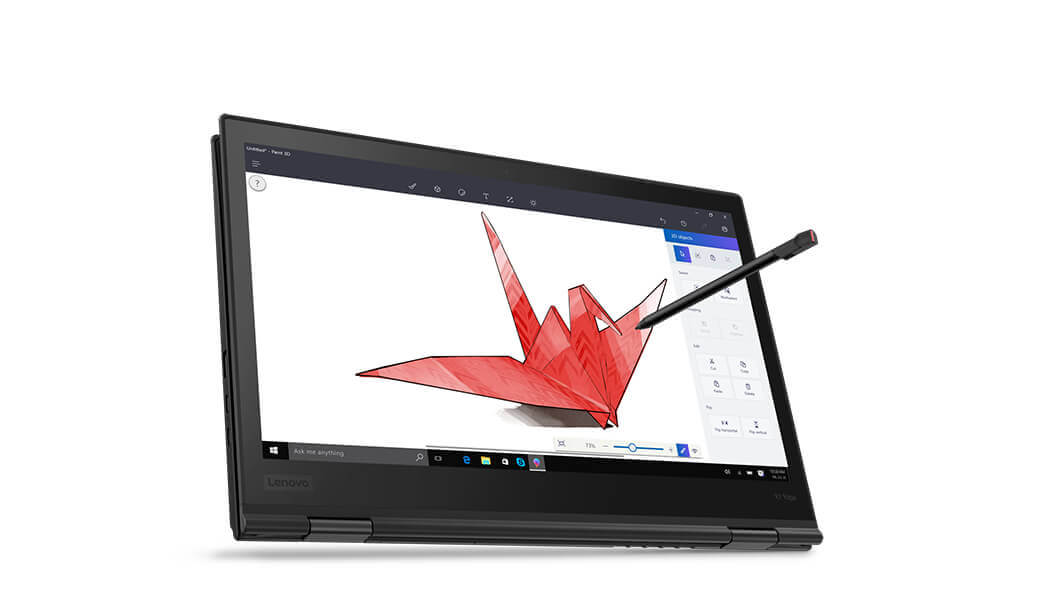


 At home, I have been setting up and testing a new, dual-boot Win10/Linux system. Lenovo Yoga 510 is a budget-class, two-in-one device that I am currently setting up as a replacement for my old Vivobook (unfortunately, it has a broken power plug/motherboard, now). Technical key specs (510-14ISK, 80S70082MX model, Signature Edition) include an Intel i5-6200U processor (a 2,30-2,80 GHz Skylake model), Intel HD Graphics 520 graphics, 4 GB of DDR4 memory, 128 GB SSD, IPS Full HD (1920 x 1080) 14″ touch-screen display, and a Synaptics touchpad and a backlit keyboard. There is a WiFi (802.11 a/b/g/n/ac) and Bluetooth 4.0. Contrasted to some other, thinner and lighter devices, this one has a nice set of connectors: one USB 2.0, two USB 3.0 ports (no Thunderbolt, though). There is also a combo headphone/mic jack, Harman branded speakers, a memory card slot (SD, SDHC, SDXC, MMC), 720p webcam, and a HDMI connector. There is also a small hidden “Novo Button”, which is needed to get to the BIOS settings.
 The high point of Lenovo Thinkpad laptops has traditionally been their keyboards. This Yoga model is not one of the professional Thinkpad line, but the keyboard is rather good, as compared to the shallow, non responsive keyboards that seem to be the trend these days. The only real problem is the non-standard positioning of up-arrow/PageUp and RightShift keys – it is really maddening to write, and while touch-typing every Right-Shift press produces erroneous keypress that moves the cursor up (potentially e.g. moving focus to “Send Email” rather than to typing, as I have already witnessed). But this can sort of be fixed by use of KeyTweak or similar tool, which can be used to remap these two keys to other way around. Not optimal, but a small nuisance, really.
 Installing dual boot Ubuntu requires the usual procedures (disabling Secure Boot, fast startup, shrinking the Windows partition, etc.), but in the end Linux runs on this Lenovo laptop really well. The touch screen and all special keys I have tested work flawlessly right after the standard Ubuntu 17.04 installation, without any gimmicky hacking. Having a solid (bit heavy though) laptop with a 14-inch touch-enabled, 360 degree rotating screen, and which can be used without issues in the most recent versions of both Windows 10 and Linux is a rather nice thing. Happy with this, at the moment.

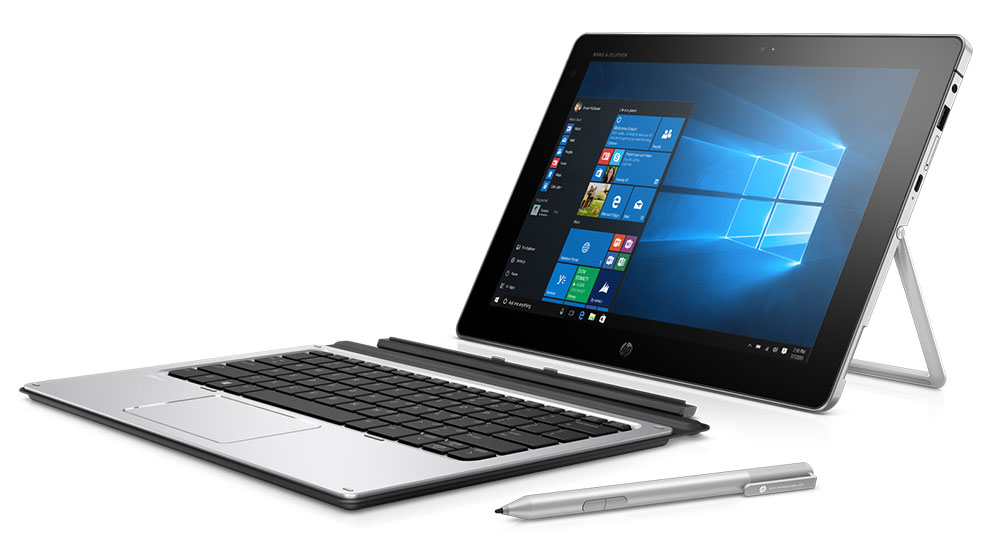
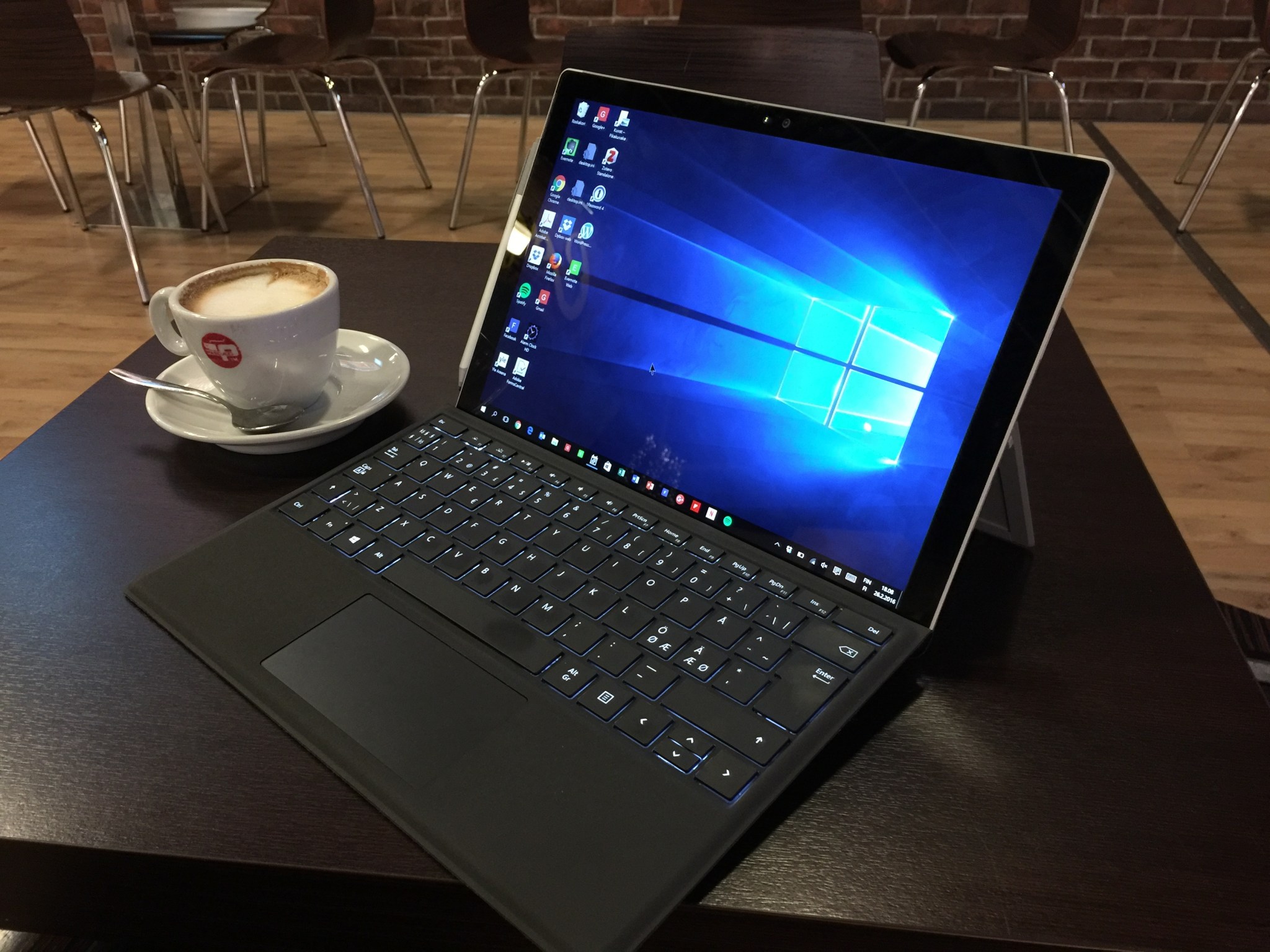
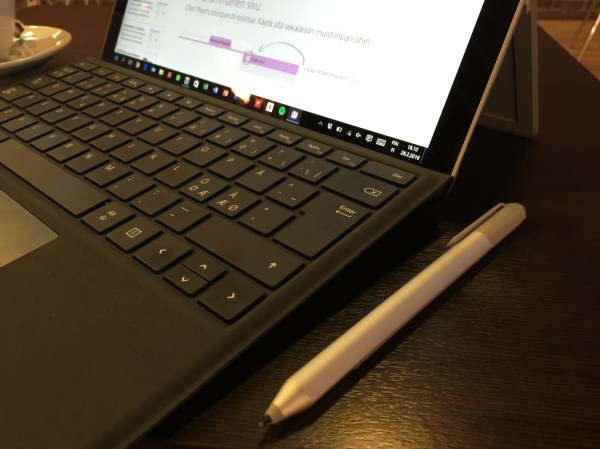 The most essential accessory (apart from Surface Pen) is the Type Cover, which is a pretty good keyboard & touchpad combo. It is not perfect (there is some flex, and a flappy cover is never a solid part of device like a real clamshell laptop keyboard is), but it is much better than many other keyboard covers for mobile devices. Keys have slightly rubbery feel and I cannot get as high typing speed as e.g. with a good ThinkPad keyboard or Logitech K810, for example, but with this keyboard Microsoft is almost there. The touchpad is a smooth glass thing that reacts precisely, is large enough and can handle multitouch (five simultaneous touch points), so gestures work fine. (The double-tap and select actions do not always register, however, as the touchpad is affected if Surface Pro is used in uneven or soft surfaces.) The trick is to develop the necessary skills where you automatically put your hands for some tasks to the touchscreen of Surface display, and for some to the touchpad – and then do some elements in multitasking with keyboard combos (Win-Tab, Ctrl-Tab, Alt-Tab etc.) and even then some tasks with the pen. The form factor of Surface also changes depending whether you use it with the keyboard or not, in landscape or vertical orientation, or whether the OS is in Windows 10 desktop mode or tablet mode (the “Metro” user interface that was introduced in Win 8).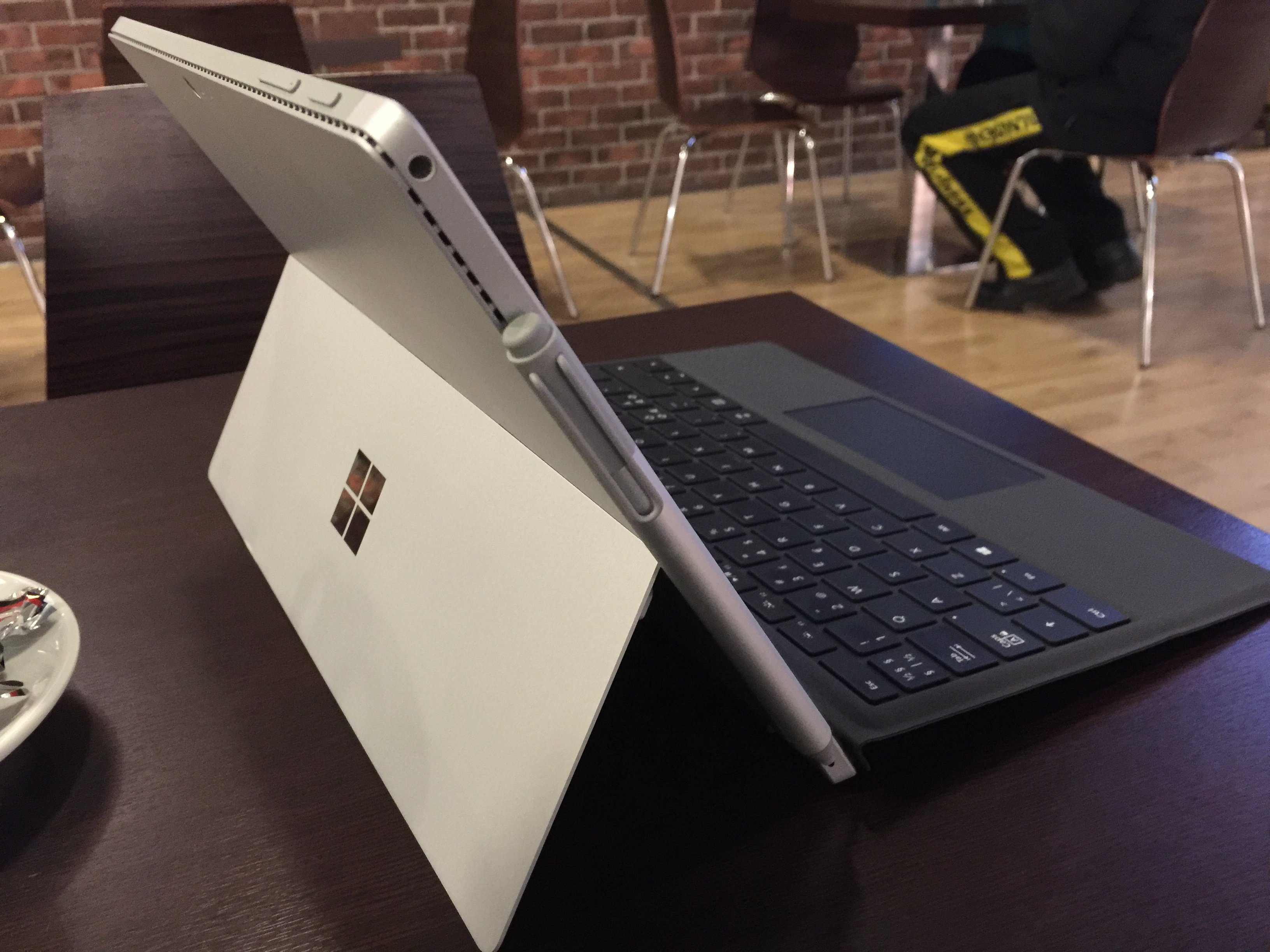


 frans goes blog
You must be logged in to post a comment.