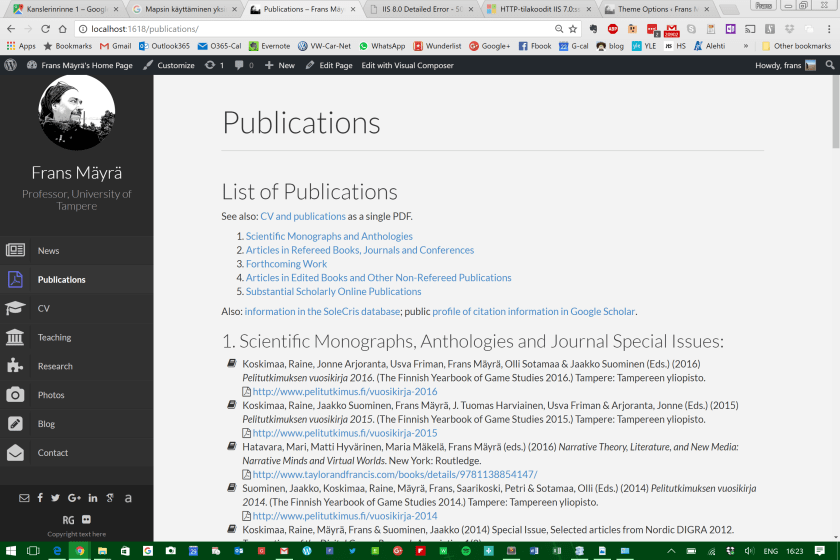
Update: the new design is now live at: www.unet.fi. – My current university side home pages are from year 2006, so there is a decade of Internet and WWW evolution looming over them. Static HTML is not so bad in itself – it is actually fast and reliable, as compared to some more flaky ways of doing things. However, people access online content increasingly with mobile devices and getting a more “responsive” design (that is, web page design code that scales and adapts content into small or large screen devices differently) is clearly in order.
When one builds institutional home pages as part of the university or other organisation infrastructure, there are usually various technical limitations or other issues, so also in this case. While I have a small “personnel card” style, official contact page in our staff directory, I have wanted my personal home pages to include more content that would reflect my personal interests, publication activity, and to carry links to various resources that I find important or relevant. Our IT admin, however, has limited the WWW server technologies to a pretty minimal set, and there is not, for example “mod_rewrite” module loaded to the Apache that serves our home pages. That means that my original idea to go with a “flat file CMS” to create the new pages (e.g. Kirby: https://getkirby.com/) did not work. There was only one CMS that worked without mod_rewrite that I could find (CMSimple: https://www.cmsimple.org/), and testing that was pain (it was too clumsy and limited in terms of design templates and editing functions for my, non-coder tastes). The other main alternative was to set up a CMS that relies on an actual database (MySQL or similar), but that was forbidden from personal home pages in our university, too.
For a while I toyed with an idea that I would actually set up a development server of my own, and use it to generate static code that I would then publish on the university server. Jekyll (https://jekyllrb.com/) was most promising option in that area. I did indeed spend few hours (after kids have gone to bed) in setting up a development environment into my Surface Pro 4, building on top of the Bash/Ubuntu subsystem, adding Python, Ruby, etc., but there was some SSH public key signing bug that broke the connection to GitHub, which is pretty essential for running Jekyll. Debugging that road proved to be too much for me – the “Windows Subsystem for Linux” is still pretty much a work-in-progress thing. Then I also tried to set up an Oracle VM VirtualBox with WordPress built in, but that produced some other, interesting problems of its own. (It just also might be a good idea to use something a bit more powerful than Surface Pro for running multiple server, photo editing and other tools at the same time – but for many things, this tablet is actually surprisingly good.)
Currently, the plan is that I will develop my new home pages in WordPress, using a commercial “Premium” theme that comes with actual tutorials on how to use and adapt it for my needs (plus they promise support, when I’ll inevitably lose my way). In last couple of days, I have made decent progress using the Microsoft Webmatric package, which includes an IIS server, and pretty fully featured WordPress that runs on top of that (see: http://ivanblagojevic.com/how-to-install-wordpress-on-windows-10-localhost/). I have installed the theme of my choice, and plugins it requires, and started the selection and conversion of content for the new framework. Microsoft, however, has decided to discontinue Webmatrix, and the current setup seems bit buggy, which makes actual content production somewhat frustrating. The server can suddenly lose reading rights to some key graphics file, for example. Or a WordPress page with long and complex code starts breaking down at some point, so that it fails to render correctly. For example, when I had reached about the half way point in creating the code and design for my publications page, the new text and graphics started appearing again from the top of the page, on top of the text that was there already!
I will probably end up setting up the home pages into another server, where I can actually get a full Apache, with mod_rewrite, MySQL and other necessary functions for implementing WordPress pages. In UTA home pages there would then be a redirect code that would show the way to the new pages. This is not optimal, since the search engines will not find my publications and content any more under the UTA.fi domain, but this is perhaps the simplest solution in getting the functionalities I want to actually run as they should. Alternatively, there are some ways to turn a WordPress site into static HTML pages, which can then be uploaded to the UTA servers. But I do not hold my breath whether all WordPress plugins and other more advanced features would work that way.
The Finnish Museum of Games (Suomen Pelimuseo) was open for the first time tonight; this event was only for the various partners who had made the museum possible, experts and makers, as well as to the important donators in the crowdfunding campaign. Pelimuseo is the first public organisation in Finland which has successfully run a crowdfunding effort to realise its goals: there were over 1100 people and organisations who took part (our UTA/SIS Game Research Lab was one).
This first look was exiting experience, and already convinced me that this museum will be a major success story. There is so much pent-up need for re-experiencing, reflecting and sharing of game culture, play histories and digital cultural heritage of the past decades that it is obvious this museum will have to face the positive problem of how to facilitate the requirements coming from its popularity. That is at least my feeling on the basis of this first evening, as a large crowd of game enthusiasts, parents with their kids, game designers, game scholars, game educators, historians, journalists, members of gaming subcultures of various kinds gathered together to celebrate and re-experience some of the formative elements from their personal pasts, as well as to meet for the first time some forgotten gems of digital, as well as analog (e.g. board game, rpg, larp) games of the past.
The Finnish Museum of Games will officially open its doors to audience in January 2017. It is located in Vapriikki museum centre, in Tampere. More at: https://suomenpelimuseo.fi/.
Short note on what I have found to be the most useful way of using MS Surface Pro 4 in my daily workflow: firstly, I have mostly learned to ignore the dedicated “Windows 10 app” versions of services that I am using. The user experience in those, stripped down versions are generally rather bad. It is much better idea to use the full, desktop version (if available – and Surface Pro 4 is powerful enough to run the desktop one in 99 % of cases). The second option is to try using the “web app” version of the service – even those are generally much better than the “app” you might find from the Windows Store. Chrome is really helpful here, as you can save almost any web page into a Web App to the Windows desktop (go to: Settings [three dots up right], then ‘More Tools’, then ‘Add to Desktop’). The web versions are versatile and powerful these days, and you can e.g. easily enlarge elements in the web interface by simple ‘pinch zoom’ finger gestures – in contrary to the Windows apps, whose interfaces mostly do not scale at all.
I have also tried to learn my own user interface technique, which is a combination of scrolling and pinching with my fingers, precise pointing, underlining, drawing and writing with the Surface Pen, and more exact mouse work, where I currently mostly use Logitech M570 Wireless Trackball. I have never really learned to enjoy the official Type Cover, even while it is great improvement over previous generations of thin-and-light keyboard covers (there is still bit too much flex, and the shallow and imprecise key movement sometimes really irritates a touch typist). So I use a high quality external wireless keyboard, currently either a Logitech K810 or a K811, which I have several.
The downside of this system is that there is a real patchwork to move around and set up: Surface tablet, Pen, trackball mouse, external keyboard, plus of course the power brick. When contrasted to a regular laptop, the benefits are in flexibility: in tablet mode, I can go some time without any other items, or just work with the Surface and the Surface Pen (e.g. when marking drafts and grading student work). But when writing and productivity tasks take priority, then a regular laptop would indeed make things a bit simpler. Maybe the next version of Surface Book might bring these things together? Currently there are some nice compromise efforts (e.g. Lenovo Yoga 900S), but there are multiple compromises in e.g. processing power, storage, pen integration and keyboard quality that this kind of “convertible ultrabooks” take, as contrasted to having separate devices that are all excellent in what they do.
Thus, my current patchwork seems to work best, for me, at least.
Apple has been developing their television offerings in multiple fronts: in one sense, much television content and viewers have already moved into Apple (and Google) platforms, as online video and streaming media keeps on growing in popularity. According to one market research report, in 18-24 age group (in America), between 2011 and 2016, traditional television viewing has dropped by almost 40 %. At the same time, subscriptions to streaming video services (like Netflix) are growing. Particularly among the young people, some reports already suggest that they are spending more time watching streaming video as contrasted to watching live television programs. Just in the period from 2012 to 2014, mobile video views increased by 400 %.
Still, the television set remains as the centrepiece of most Western living rooms. Apple TV is designed to adapt games, music, photos and movies from the Apple ecosystem to the big screen. After some problems with the old, second generation Apple TV, I got today the new, 4th generation Apple TV. It has more powerful processor, more memory, a new remote control that has a small touch surface, and runs a new version of tvOS. The most important aspect regarding expansions into new services is the ability to download and install apps and games from thousands that are available in the App Store for tvOS.
After some quick testing, I think that I will prefer using the Remote app in my iPhone 6 Plus, rather than navigating with the small physical remote, which feels a bit finicky. Also, for games the dedicated video game controller (Steelseries Nimbus) would definitely provide a better sense of control. The Nimbus should also play nice with iPhone and iPad games, in addition to Apple TV ones.
Setup of the system was simple enough, and was most easily handled via another Apple device – iCloud was utilized to access Wi-Fi and other registered home settings automatically. Apart from the bit tricky touch controls, the user experience is excellent. Even the default screensavers of the new system are this time high-definition video clips, which are great to behold in themselves. This is not a 4k system, though, so if you have already upgraded the living room television into 4k version, the new Apple TV does not support that. Ours is still a Full HD Sony Bravia, so no problem for us. Compared to some other competing streaming media boxes (like Roku 4, Amazon Fire TV, Nvidia Shield Android TV), the feature set of Apple TV in comparison to its price might seem a bit lacklustre. The entire Apple ecosystem has its own benefits (as well as downsides) though.
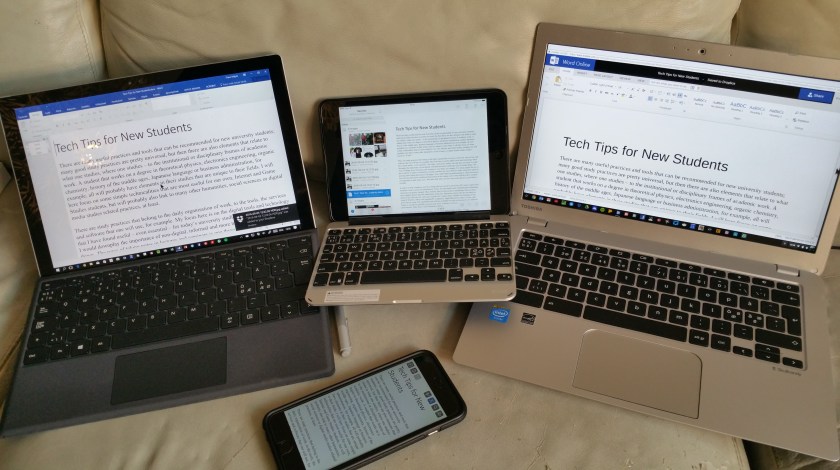
Going cross-platform: same text accessed via various versions of MS Word and Dropbox in Surface Pro 4, iPad Mini (with Zagg slim book keyboard case), Toshiba Chromebook 2, and iPhone 6 Plus, in the front.
There are many useful practices and tools that can be recommended for new university students; many good study practices are pretty universal, but then there are also elements that relate to what one studies, where one studies – to the institutional or disciplinary frames of academic work. A student that works on a degree in theoretical physics, electronics engineering, organic chemistry, history of the Middle Ages, Japanese language or business administration, for example, all will probably have elements in their studies that are unique to their fields. I will here focus on some simple technicalities should be useful for many students in the humanities, social sciences or digital media studies related fields, as well as for those in our own, Internet and Game Studies degree program.
There are study practices that belong to the daily organisation of work, to the tools, the services and software that one will use, for example. My focus here is on the digital tools and technology that I have found useful – even essential – for today’s university studies, but that does not mean I would downplay the importance of non-digital, informal and more traditional ways of doing things. The ways of taking notes in lectures and seminars is one thing, for example. For many people the use of pen or pencil on paper is absolutely essential, and they are most effective when using their hands in drawing and writing physically to the paper. Also, rather than just participating in online discussion fora, having really good, traditional discussions in the campus café or bar with the fellow students are important in quite many ways. But taken that, there are also some other tools and environments that are worth considering.
It used to be that computers were boxy things that were used in university’s PC classes (apart from terminals, used to access the mainframes). Today, the information and communication technology landscape has greatly changed. Most students carry in their pockets smartphones that are much more capable devices than the mainframes of the past. Also, the operating systems do not matter as much as they did only a few years ago. It used to be a major choice whether one went and joined the camp of Windows (Microsoft-empowered PC computers), that of Apple Macintosh computers, those with Linux, or some other, more obscure camp. The capabilities and software available for each environment were different. Today, it is perfectly possible to access same tools, software or services with all major operating environments. Thus, there is more freedom of choice.
The basic functions most of us in academia probably need daily include reading, writing, communicating/collaborating, research, data collecting, scheduling and other work organisation tasks and use of the related tools. It is an interesting situation that most of these tasks can be achieved already with the mobile device many of us carry with us all the time. A smartphone of iOS or Android kind can be combined with an external Bluetooth keyboard and used for taking notes in the lectures, accessing online reading materials, for using cloud services and most other necessary tasks. In addition, smartphone is of course an effective tool for communication, with its apps for instant messaging, video or voice conferencing. The cameraphone capabilities can be used for taking visual notes, or for scanning one’s physical notes with their mindmaps, drawings and handwriting into digital format. The benefit of that kind of hybrid strategy is it allows taking advantage both of the supreme tactile qualities of physical pen and paper, while also allowing the organisation of scanned materials into digital folders, possibly even in full-text searchable format.
The best tools for this basic task of note taking and organisation are Evernote and MS OneNote. OneNote is the more fully featured one – and more complex – of these two, and allows one to create multiple notebooks, each with several different sections and pages that can include text, images, lists and many other kinds of items. Taking some time to learn how to use OneNote effectively to organise multiple materials is definitely worth it. There are also OneNote plugins for most internet browsers, allowing one to capture materials quickly while surfing various sites.
MS OneNote, Microsoft tutorial materials.
Evernote is more simple and straightforward tool, and this is perhaps exactly why many prefer it. Saving and searching materials in Evernote is very quick, and it has excellent integration to mobile. OneNote is particularly strong if one invests to Microsoft Surface Pro 4 (or Surface Book), which have a Surface Pen that is a great note taking tool, and allows one to quickly capture materials from a browser window, writing on top of web pages, etc. On the other hand, if one is using an Apple iPhone, iPad or Android phone or tablet, Evernote has characteristics that shine there. On Samsung Note devices with “S Pen” one can take screenshots and make handwritten notes in mostly similar manner than one can do with the MS Surface Pen in the Microsoft environment.
In addition to the note solution, a cloud service is one of the bedrocks of today’s academic world. Some years ago it was perfectly possible to have software or hardware crash and realize that (backups missing), all that important work is now gone. Cloud services have their question marks regarding privacy and security, but for most users the benefits are overwhelming. A tool like Dropbox will silently work in the background and make sure that the most recent versions of all files are always backed up. A file that is in the cloud can also be shared with other users, and some services have expanded into real-time collaboration environments where multiple people can discuss and work together on shared documents. This is especially strong in Google Drive and Google Docs, which includes simplified versions of familiar office tools: text editor, spreadsheet, and presentation programs (cf. classic versions of Microsoft Office: Word, Excel, and PowerPoint; LibreOffice has similar, free, open-source versions). Microsoft cloud service, Office 365 is currently provided for our university’s students and staff as the default environment free of charge, and it includes the OneDrive storage service as well as Outlook email system, and access to both desktop as well as cloud-hosted versions of Office applications – Word Online, Excel Online, PowerPoint Online, and OneNote Online. Apple has their own iCloud system, with Mac office tools (Pages, Numbers, and Keynote) also can be operated in browser, as iCloud versions. All major productivity tools have also iOS and Android mobile app versions of their core functionalities available. It is also possible to save, for example, MS Office documents into the MS OneCloud, or into Dropbox – a seamless synchronization with multiple devices and operating systems is an excellent thing, as it makes possible to start writing on desktop computer, continue with a mobile device, and then finish things up with a laptop computer, for example.
Microsoft Windows, Apple OS X (Macintosh computers) and Linux have a longer history, but I recommend students also having a look at Google’s Chrome OS and Chromebook devices. They are generally cheaper, and provide reliable and very easy to maintain environment that can be used for perhaps 80 % or 90 % of the basic academic tasks. Chromebooks work really well with Google Drive and Google Docs, but principally any service that be accessed as a browser-based, cloud version also works in Chromebooks. It is possible, for example, to create documents in Word or PowerPoint Online, and save them into OneDrive or Dropbox so that they will sync with the other personal computers and mobile devices one might be using. There is a development project at Google to make it possible to run Android mobile applications in Chrome OS devices, which means that the next generation of Chromebooks (which will all most likely support touchscreens) will be even more attractive than today’s versions.
For planning, teamwork, task deadlines and calendar sharing, there are multiple tools available that range from MS Outlook to Google Calendar. I have found that sharing of calendars generally works easier with the Google system, while Outlook allows deeper integration into organisation’s personnel databases etc. It is really good idea to plan and break down all key course work into manageable parts and set milestones (interim deadlines) for them. This can be achieved with careful use of calendars, where one can mark down the hours that are required for personal, as well as teamwork, in addition to lectures, seminars and exercise classes your timetable might include. That way, not all crucial jobs are packed next to the end of term or period deadlines. I personally use a combination of several Google Calendars (the core one synced with the official UTA Outlook calendar) and Wunderlist to-do list app/service. There are also several dedicated project management tools (Asana, Trello, etc.), but mostly you can work the tasks with basic tools like Google Docs, Sheets (Word, Excel) and then break down the tasks and milestones into the calendar you share with your team. Communications are also essential, and apart from email, people today generally utilize Facebook (Messenger, Groups, Pages), Skype, WhatsApp, Google+/Hangouts, Twitter, Instagram and similar social media tools. One of the key skills in this area is to create multiple filter settings or more fine-grained sharing settings (possibly even different accounts and profiles) for professional and private purposes. The intermixing of personal, study related and various commercial dimensions is almost inevitable in these services, which is why some people try to avoid social media altogether. Wisely used, these services can be nevertheless immensely useful in many ways.
All those tools and services require accounts and login details that are easily rather unsafe, by e.g. our tendency to recycle same or very similar passwords. Please do not do that – there will inevitably be a hacking incident or some other issue with some of those services, and that will lead you into trouble in all the others, too. There are various rules-based ways of generating complex passwords for different services, and I recommend using two-factor authentication always when it is available. This is a system where typically a separate mobile app or text messages act as a backup security measure whenever the service is accessed from a new device or location. Life is also much easier using a password manager like LastPass or 1Password, where one only needs to remember the master password – the service will remember the other, complex and automatically generated passwords for you. In several contemporary systems, there are also face recognition (Windows 10 Hello), fingerprint authentication or iris recognition technologies that are designed to provide a further layer of protection at the hardware level. The operating systems are also getting better in protecting against computer viruses, even without a dedicated anti-virus software. There are multiple scams and social engineering hacks in the connected, online world that even the most sophisticated anti-virus tools cannot protect you against.
Finally, a reference database is an important part of any study project. While it is certainly possible to have a physical shoebox full of index cards, filled with quotes, notes and bibliographic details of journal articles, conference papers and book chapters, it is not the most efficient way of doing things. There are comprehensive reference database management services like RefWorks (supported by UTA) and EndNote that are good for this job. I personally like Zotero, which exists both as cloud/browser-based service in Zotero.org, but most importantly allows quick capture of full reference details through browser plugins, and then inserting references in all standard formats into course papers and thesis works, in simple copy-paste style. There can also be set up shared, topics based bibliographic databases, managed by teams in Zotero.org – an example is Zotero version of DigiPlay bibliography (created by Jason Rutter, and converted by Jesper Juul): https://www.zotero.org/groups/digiplay .
As a final note, regardless of the actual tools one uses, it is the systematic and innovative application of those that really sets excellent study practices apart. Even the most cutting edge tools do not automate the research and learning – this is something that needs to be done by yourself, and in your individual style. There are also other solutions, that have not been explored in this short note, that might suit your style. Scrivener, for example, is a more comprehensive “writing studio”, where one can collect snippets of research, order fragments and create structure in more flexible manner than is possible than in e.g. MS Word (even while its Outline View is too underused). The landscape of digital, physical, social and creative opportunities is all the time expanding and changing – if you have suggestions for additions to this topic, please feel free to make those below in the comments.
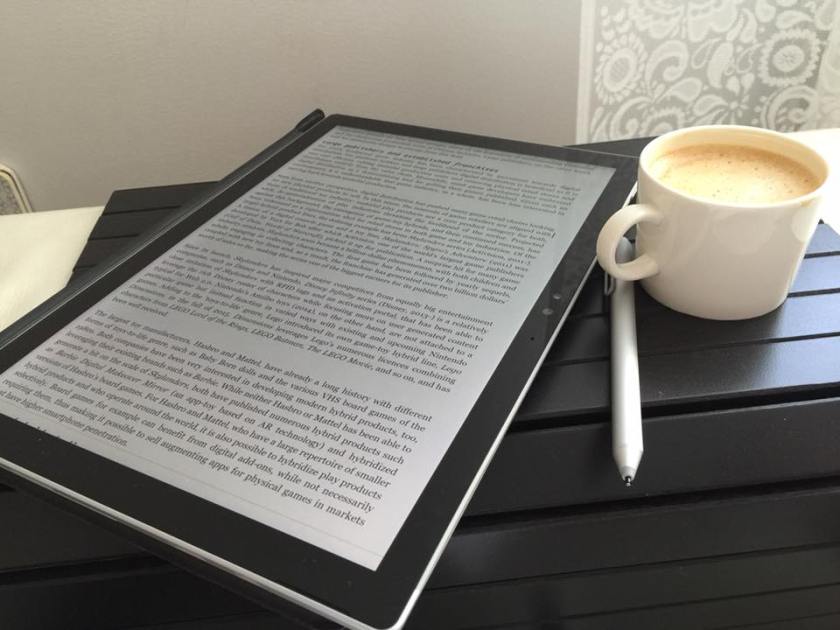
[Edit: there is a suggested solution to the issue now at the end] The Surface Pro 4 that I am using is a versatile device and particularly strong in reading and commenting digital documents. I am regularly working on articles, seminar essays, thesis manuscripts and book lenght work, and it is really nice to be able to type text quickly like with a regular laptop, then flip the device over and start reading in full screen mode. When the PDF document is open, it is really handy to do the highlighting and scribble the review comments in the margins with the Surface Pen. However, the software does not currently support this fully. Adobe Reader Touch and Acrobat XI Pro that I am using both can be used with the Pen, but only to a limited manner, and through rather complex function selections. The best support for the Pen is built into the Microsoft OneNote, but there is one serious issue currently: when you open a PDF file in OneNote 2016 for editing (New Page > Insert > PDF Printout), a longer file will take literally hours to process. OneNote makes some kind of image file from each page and each letter, and does this very very slowly. This is simply not feasible. I have read that the older, 2013 version worked fast – I wonder what has gone wrong with the new, updated OneNote?
Edit (27 July, 2016): Marjolein Hoekstra from the OneNote Central (@OneNoteC) kindly reached out to me via Twitter and suggested a solution for the jamming PDF import issue – one needs to go to File > Options > Advanced, then look for Printout options group (at the very bottom of the list), disable the first option about printing to multiple pages, and then click ok/save the settings. This indeed appears to make the PDF import work for me, so: many thanks for the tip! Surface Pro 4 still struggles a bit to keep long, 300+ page PDF documents visible (rendering of the typefaces jams occasionally), but this is now at least a working solution.
There’s the recent piece of news making rounds Tesla Model S using Autopilot being involved in fatal crash in Florida. (See e.g. http://www.theverge.com/2016/6/30/12072408/tesla-autopilot-car-crash-death-autonomous-model-s ) There are multiple reactions, ranging from “autopilot killed the driver” to “fully autonomous cars are the answer”. Our VW Touran is also equipped with multiple “driver assist” systems, and my experience from using them is sort of mixed. There are clearly beneficial functions, like the adaptive cruise control (ACC) that appears pretty reliable in helping maintaining safe distance to other vehicles, reducing potential for accidents, and also reducing driver stress while being constantly forced to slow down or speed up in congested motorways.
On the other hand, VW Lane Assist system is being marketed as a “friendly co-driver” that can sense if car is “drifting out of your driving lane”, when it “gently counter-steers the car back on line”. In practice, using Lane Assist often feels like you are competing from control of the car with the system, as the exact driving line the system uses is not always the one I would choose as a driver. The system should learn about the preferences of the driver, but the fundamental issue with semi-autonomous, assisted cars remains: who is exactly in charge?
The semi-autonomous system feels like it knows best, in most situations. But in several situations it does not react, or cannot detect the obvious danger. The car companies emphasise that the driver is always responsible of the control of the vehicle, but as assistive systems are developing stronger, they are sending mixed signals. There is always the temptation to take feet off the pedals, or hands off the steering wheel. Yet, the driver should keep focused and alert, in order to react at the right moment when the robotic assistant fails or comes to the limits of its abilities. For a driver, this also means that one should not only know the limits of one’s own abilities, but learn to know the limits of the assistive systems, and learn new driving skills, that are half based on old-fashioned direct control of the car, and half on division of tasks to the artificial intelligence systems. And that is a new kind of skill set.
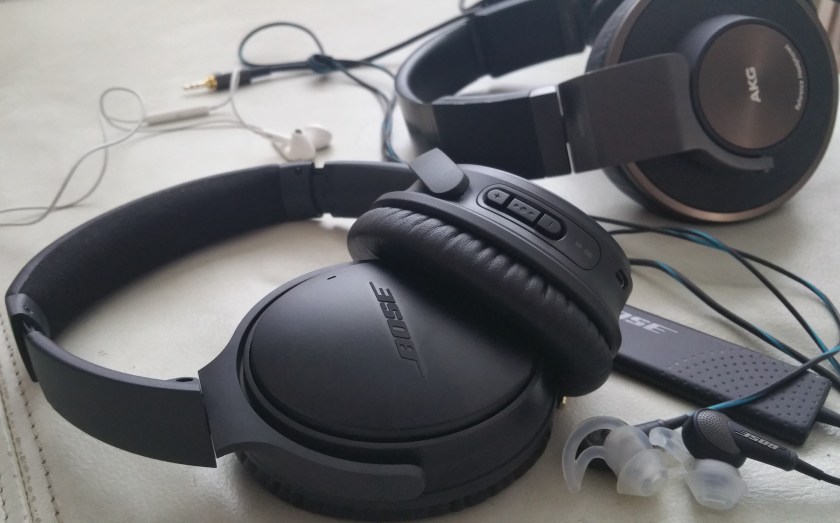
Enjoying music of all kinds home and on the road (and, at summertime, at the beach / in nature), I have been interested in mobile audio solutions (though not in any religious or “serious audiophile” manner, luckily for my wallet). At homes, my headphones are AKG K550, which are very analytical, crystal clean-sounding, closed-back German headphones, featuring 50 mm drivers and weight of 305 grams. I have attempted to travel with these things, but they are just not designed for travel, they are large and do not fold into any compact proportions. Also, long and thick cable is real hassle when you move from train to airport to bus, etc. Thus, to travel headphones.
In travel, everything is a compromise, in this case primarily between portability, size, weight, and features. Currently, I have settled into three-tier approach. In daily life, I always carry Apple EarPods with Remote and Mic: these are better than most light, in-ear headphones, but they do not isolate the user from the environment sounds, and they also play nicely with my iPhone 6 Plus apps for making phone calls and having those Skype meetings.
The second tier is currently occupied by Bose QuietComfort 20, which are a pair of in-ear noise cancelling headphones that are perfect for that short flight or other day-trip with only light hand luggage. It has well-designed “StayHear+” style silicone tips that happen to fit my ears perfectly (there are three sizes). These are the most efficient noise cancelling headphones I have tried. In everyday use they might even be a bit too efficient: the user is just enjoying blissful silence, even if directly addressed or discussed around you. You will not hear a thing. There is a specific “Aware Mode” button that you need to press, in order to get some ambient sounds through. Also, this is a wired system, so the cable will catch and occasionally tangle with the straps of your laptop bag and elsewhere.
And here comes the third tier, the more demanding mobile use and the solution provided by the new wireless, Bluetooth headphones by Bose: QuietComfort 35. These are bit on the larger size, so I would not probably always pack them with me on short trips, but on longer travels this is an excellent choice. The noise cancelling is very good, but not quite as efficient as that on QC20, since these are an on-ear model rather than a completely isolating in-ear ones – but in many situations that is even preferable. And the sound quality is excellent. There are probably some aspects that a real audiophile expect could criticize (there always are), but What Hifi? magazine reviewer for example gave them five stars. These have a rechargeable lithium ion battery that promises circa 20 hours of power, and after that it is possible to connect a cable and continue in wired mode, without noise cancellation. There is also the ability to connect to multiple (two simultaneously) Bluetooth devices, so that one can take that call from the work phone, while listing to music from the laptop or iPad (I have not tested this yet, I am currently on summer vacation). Pairing can be done with NFC, by touching, and there is a Bose Connect app for smartphones (iOS and Android) that can be used to managing paired devices, changing battery status, and setting sleep timer, for example. When power is turned on, the headphones use voice synthesis to speak aloud the battery level and device name they are currently connected with. Handy. The weight is 309 grams, so this is not the most light-weight option, but wearing QC35 feels comfortable. Testing with different music styles, I was particularly impressed how QC35 handled the “Silent Night” album by Tapani Rinne – with its mixture of deep-bass electronica and quiet, soft acoustic tunes, this is a very challenging recording, and the clear soundscape and powerful dynamics of QC35 really let this kind of music shine.
When I am using an iOS or Android tablet, the file management is usually a mess, external keyboard and mouse inputs are not working reliably, and multitasking between several apps and services, copy-pasting or otherwise sharing information between them all is a pain.
When I am on a regular Windows laptop or PC, keyboard and mouse/touchpad usually are just fine, and file management, multitasking and copy-pasting work fine. Touch screen inputs and the ease of use lag behind tablet systems, though. (This is true also to the Apple OS X desktop environment, but I have pretty much given up the use of Macs for my work these days, I just could not configure the system to work and behave in the ways I want – as a Microsoft OS/PC user who has hacked his way around DOS, then Windows 3.0 etc., and thus has certain things pretty much “hard-wired” in the way I work.)
Surface Pro 4 is the most optimal, almost “all-in-one” system I have found so far, but I have started to increasingly dislike its keyboard cover. Surface Pro 4 cover is not that bad, but if you are a touch-typist, it is not perfect. There is still slight flex in the plastic construction and shallow key movement that turns me off, and produces typing errors exactly when you are in a hurry and you’d need to type fast. I am currently trying to find a way to get rid of the type cover, and instead use my favorite, Logitech K810 instead. But: I am not able to attach it to Surface Pro in solid enough way, and there is no touchpad in K810, so workflow with all those mouse right-clicks becomes rather complex.
I really like the simplicity of Chromebooks, and this blog note, for example, is written with my trusty Toshiba Chromebook 2, which has excellent, solid keyboard (though not backlighted), and a good, crisp Full HD IPS screen plus a responsive, large touchpad. However, I keep reaching out and trying to scroll the screen, which is not a touch version. (Asus Chromebook Flip would be one with a touch screen.) And there is nothing comparable to the Surface Pen, which is truly useful when one e.g. reads and makes notes to a pile of student papers in PDF/electronic formats. Also, file management in a Chrome OS is a mess, and web versions of popular apps still respond more slowly and are more limited than real desktop versions.
So, I keep on looking. Recently I tested the HP Elite X2 1012 (pictured), which is pretty identical to the Surface Pro systems that Microsoft produces, but has an excellent, metallic and solid keyboard cover, as well as other productivity oriented enhancements like the optional 4G/LTE sim card slot, USB C port with Thunderbolt technology, and a decent enough screen, pen and kickstand design. However, Elite X2 falls short in using less powerful Intel Core M series processors (Surface Pro 4 goes for regular Core i5 or i7 after the entry-level model), by being rather expensive, and according to the reviews I have read, also the battery life of Elite X2 is not something a real mobile office worker would prefere.
Maybe I can find a way to connect the Elite X2 metallic keyboard cover to the Surface Pro 4? Or maybe not.
(Edit: The battery life of Elite X2 actually appears to be good; the screen on the other hand only so-and-so.)
Due to some practical reasons, we had to update our personal car this spring. Our previous car was a VW Touran that we got in 2011 (when it was necessary for us to fit three kids or baby seats into the back row – Touran is among those very few cars that are sold in Finland that can handle this). Volkswagen’s reputation got really badly tarnished in the pollution cheating scandal in 2015, and it took us some time to consider our options. Finally we nevertheless ended up with a Touran again – there are just too few car models that get right most of the essential specs that our family needs, in the price range we still can afford. There has been some interesting changes in how cars – or at least this particular, German car model – have evolved during the five years that have passed between spring 2011 and 2016, so here are some quick notes.
Firstly: it is a bit disappointing to notice that the fuel economy, climate control or energy consumption elements of Touran have not apparently been at the top priority of VW’s R&D efforts. The excellent TSI motor of VW group has been around for a long time already (I think 1.4 liter TSI was introduced in 2005), and it was ahead of its curve at the time; the emissions were clearly lower than comparable other petrol motors, the power efficiency was so good that VW could make family cars / MPVs (multipurpose vehicles/minivans) that could be moved with 1.4 or 1.2 liter petrol motor. Coupled with the DSG automatic, VW cars have been easy to drive and provide balanced behaviour with well designed interiors that fit need of families with flexible, separate seat arrangements that can fold completely flat when moving cargo of various kinds – all this kind of details help to explain their success. The 2016 Touran model differs from our previous 1.4 TSI model by delivering a bit more power with same cylinders (150 vs. 140 horse powers) and it also has the start/stop system that automatically switches off the motor when the car is stopped in traffic lights, for example.
The key differences that the Touran driver notices are in the assistive, “smart systems” that have taken considerable leaps and entered regular, mainstream cars during the last five years. I am interested enough in futuristic technologies to order this Touran with most (but not all) available “smart” options; these included adaptive cruise control (ACC, utilizing a radar sensor), Front Assist, Park Assist 3.0, Side Assist Plus, Lane Assist, Emergency Assist, and the Traffic Jam Assist. There is also a Traffic Sign Regocnition system that uses camera to keep track of speed limit signs. The Discover Media infotainment system is also from a completely new era, as compared to the basic car radio we had in our 2011 Touran. This one has large capacitive touch screen, Europe-wide navigation system, support for Apple Carplay, Android Auto and MirrorLink standards for getting smartphones with their apps and services linked with the car (though I think Android Auto is not yet working here in Finland?) We also got some extra fuel economy, comfort and security services installed (DEFA WarmUp Link system, with its apps). On the other hand, the “Volkswagen Car-Net” service with its smartphone apps appears to be a work-in-progress; we have not been able to get either iOS or Android versions working at all.
After a couple of test drives, the new car does indeed seem to combine the traditional German stable driving and quality feel with a more informative and “alive” layer of new technologies. (In the mechanical parts side, though, we had a bit too stiff gas spring holding up the hood of our new Touran, so we could not get the hood closed without some expert assistance – there seems to be some holes in VW quality control.) The “operating system” of the new Touran takes considerably more effort than before to really learn and understand. There are both the mechanical controls and switches, the physical buttons in the dashboard that relate to certain key functionalities, and then the touchscreen controls that go deeper into setup of all those multiple smart assisting functions, as well as into controlling the infotainment system. (There is also Voice Control, but that is not supported in Finland/Finnish.) This car also has a multifunction steering wheel, which our old car did not have, and there are loads of more buttons now to learn in there, too. While driving, one can of course ignore most of all this new tech, and just concentrate on the essentials of traffic, but one will notice that the “Assistants” will every now and then engage with the steering, breaks or launch a warning or notice signal of some kind. If one wants to understand and make best use of all assistants, it is necessary to spend some time reading and testing to learn their abilities and also limitations. Driving in the regular country road, one could in principle use now the combination of Lane Assist to steer the car and keep it on the road, and rely on the ACC with its radars to maintain regular speed and safe distance to other road users. However, the systems will flash warning signs if you try to take your hands off the steering wheel for too long, or if you show other signs of losing control – or even consciousness: the Emergency Assist system can show the car and stop it at the side of the road warning lights flashing, if it fails to get proper response from the driver.
I think we are currently at the early stages of hybrid and symbiotic systems in everyday use, and car technology is at the forefront of this evolution. As the learning algorithms, data analytics and artificial intelligence gets better, it is clear that some things really suit better for humans to understand and decide upon, whereas the speed, sensing range and problem-solving capabilities of artificial intelligence systems suit better other kinds of challenges. Learning how to do this basic task division is the key element that a smart car (or smart house, smart environment etc.) user needs to handle first. The new Touran apparently tries to learn the driving habits of its human partner, and adapt to them – but currently I think the human is the one who needs to do more of the adapting. Smart systems are not yet that smart.

 Update: the new design is now live at: www.unet.fi. – My current university side home pages are from year 2006, so there is a decade of Internet and WWW evolution looming over them. Static HTML is not so bad in itself – it is actually fast and reliable, as compared to some more flaky ways of doing things. However, people access online content increasingly with mobile devices and getting a more “responsive” design (that is, web page design code that scales and adapts content into small or large screen devices differently) is clearly in order.



 Enjoying music of all kinds home and on the road (and, at summertime, at the beach / in nature), I have been interested in mobile audio solutions (though not in any religious or “serious audiophile” manner, luckily for my wallet). At homes, my headphones are AKG K550, which are very analytical, crystal clean-sounding, closed-back German headphones, featuring 50 mm drivers and weight of 305 grams. I have attempted to travel with these things, but they are just not designed for travel, they are large and do not fold into any compact proportions. Also, long and thick cable is real hassle when you move from train to airport to bus, etc. Thus, to travel headphones.
 Due to some practical reasons, we had to update our personal car this spring. Our previous car was a VW Touran that we got in 2011 (when it was necessary for us to fit three kids or baby seats into the back row – Touran is among those very few cars that are sold in Finland that can handle this). Volkswagen’s reputation got really badly tarnished in the pollution cheating scandal in 2015, and it took us some time to consider our options. Finally we nevertheless ended up with a Touran again – there are just too few car models that get right most of the essential specs that our family needs, in the price range we still can afford. There has been some interesting changes in how cars – or at least this particular, German car model – have evolved during the five years that have passed between spring 2011 and 2016, so here are some quick notes.
 frans goes blog
You must be logged in to post a comment.